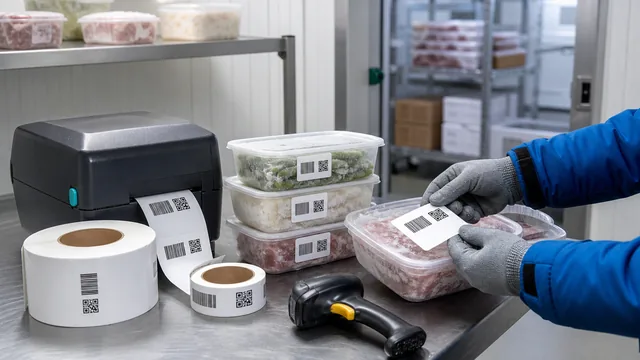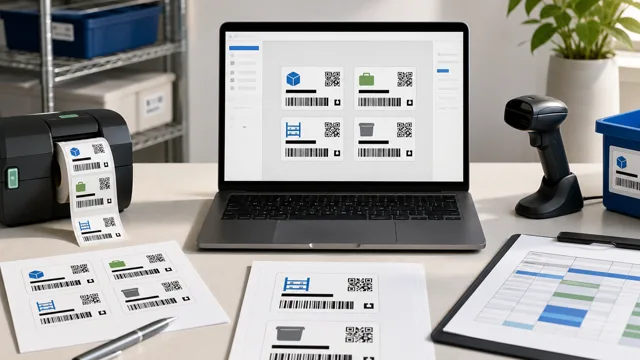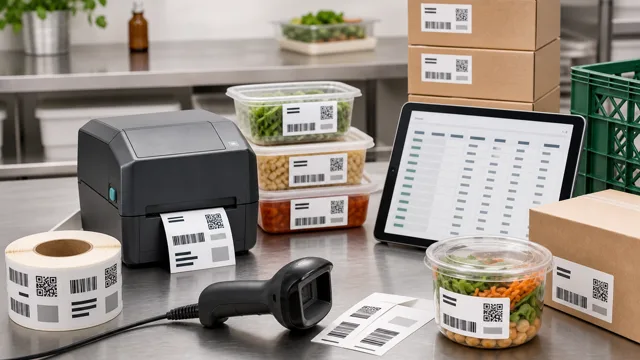
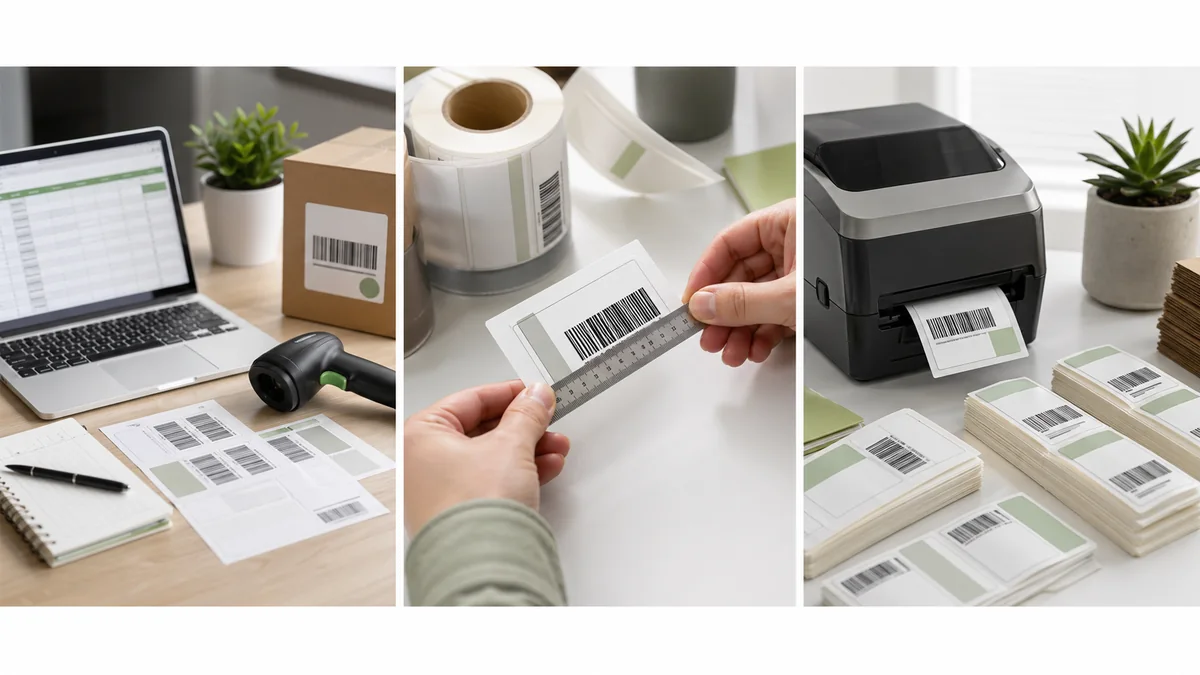
Barcode labels look simple until a batch reaches the shelf, counter, or stockroom and half the scans fail. The label may have the right design, but the SKU lost its leading zero, the code was squeezed against the label edge, or the printer made the bars too dark.
For a small team, the best first barcode label is not the most complex one. It is the label that carries the right value, scans with the equipment already in use, and can be printed again next month without redesigning the workflow.
Start with the job of the label
Write down what should happen when someone scans the label. A shelf label may open an inventory record. An asset tag may show a maintenance page. A product label may need to match a SKU in a point-of-sale or ecommerce system. That decision tells you what data belongs in the code and what should remain as readable text.
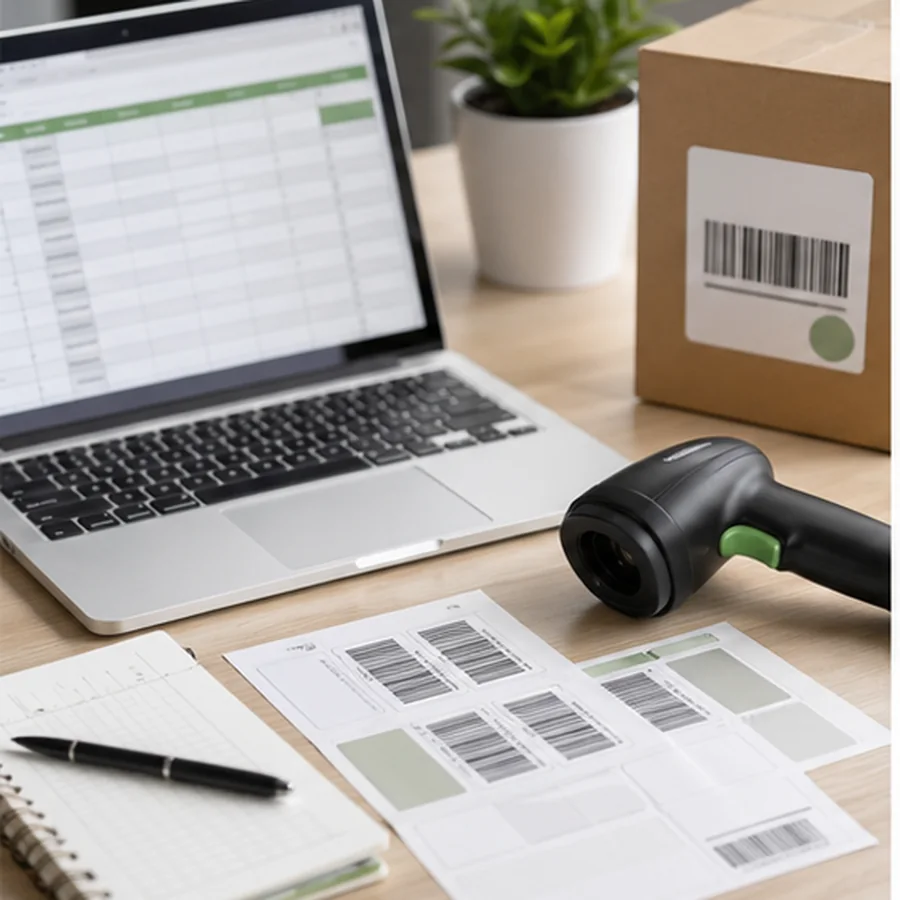
Encode the SKU or internal item ID. Keep item name, location, and reorder information as readable text when space allows.
Use a durable asset ID or URL. Add department, owner, or support contact so the label still helps when a scanner is unavailable.
Include lot number, date, quantity, and product name. Do not rely on the code alone for checks during packing or receiving.
Protect the source data first
Most label mistakes begin before design. Confirm which spreadsheet column becomes the encoded value, then lock down values that must not be treated as regular numbers. Microsoft notes that Excel can remove leading zeroes, convert long numbers to scientific notation, and round values beyond 15 significant digits unless the data is handled as text: Microsoft support on leading zeroes and large numbers.
Spreadsheet checks before import
- doneID columnDecide which column is the barcode value and name it clearly.
- doneText formatStore SKUs, asset IDs, GTINs, postal codes, and other identifiers as text when leading zeroes or long values matter.
- doneEmpty rowsRemove blanks or decide exactly how the template should handle them.
- doneDuplicatesCheck whether repeated IDs are expected, such as multiple labels for one item, or a data error.
- doneHuman labelKeep a readable SKU, asset ID, or short description on the label as a fallback.
Choose the code around the scan workflow
Use a 1D barcode when the encoded value is short and the team scans with handheld barcode scanners or existing inventory software. Code 128 is a flexible choice for internal IDs and SKUs because it supports letters, numbers, and common punctuation. Keep the encoded value short because every extra character makes the barcode wider or denser.
Use a QR code when the label needs to carry a URL, a longer identifier, or structured information that a phone camera can read. Do not assume that a QR code is automatically better. A small QR code with too much data can become hard to print cleanly, especially on tiny asset tags or low-resolution printers.
If a label must scan at retail checkout, through a trading partner, or in a regulated supply chain, follow the relevant GS1 rules instead of treating an internal label as compliant. GS1's retail 2D guidance also notes that 1D and 2D barcodes will coexist during the transition to broader 2D scanning: 2D barcodes at retail POS.
Leave room for the scanner
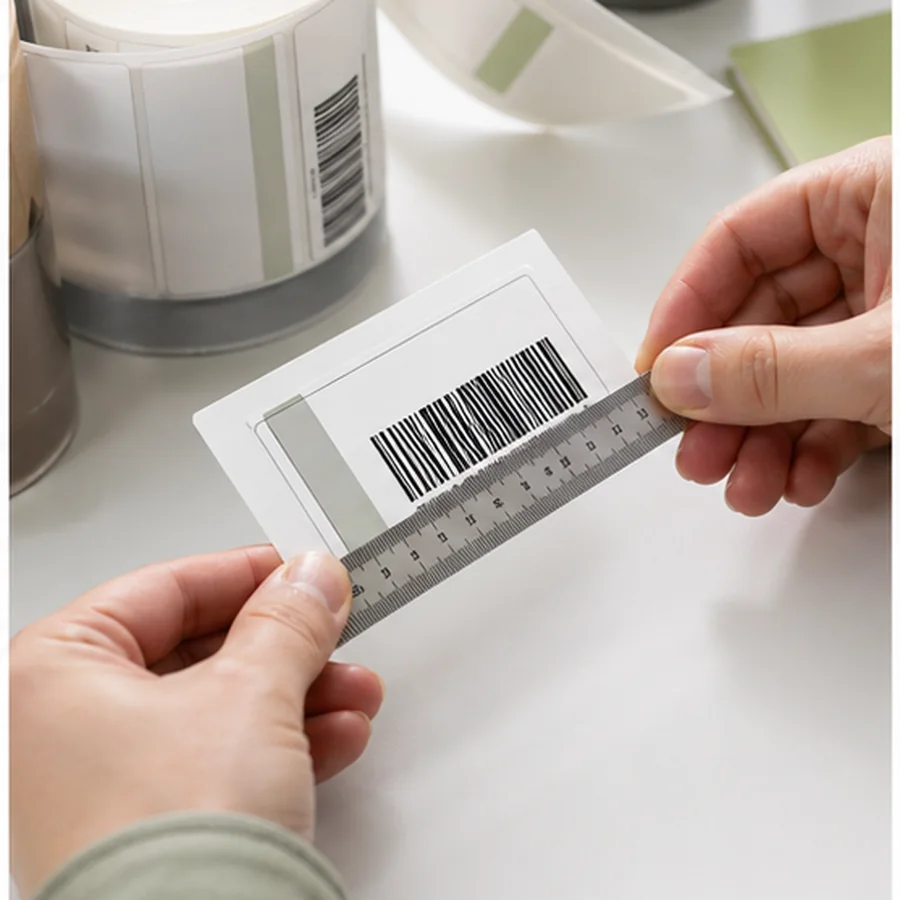
A scanner needs clear space around the code to find where the symbol starts and ends. This space is the quiet zone. For QR codes, DENSO WAVE explains that the margin should be four modules wide on all sides: QR code area guidance. For 1D barcodes, the required quiet zone depends on the symbol and size, so avoid cropping, stretching, or placing text and borders close to the bars.
The practical rule is simple: when the label feels crowded, reduce secondary text first. Do not steal space from the barcode, QR code, or its clear margin. A larger readable product name is not useful if the code fails at the receiving desk.
Match the layout to the printer and stock
A design that works on screen can shift when printed. Sheet labels may drift by the bottom row. Thermal roll labels can clip content near an edge if the printer is not calibrated. Glossy, curved, dark, wet, or textured surfaces can also reduce scan reliability. Design for the label stock and surface that will actually be used.
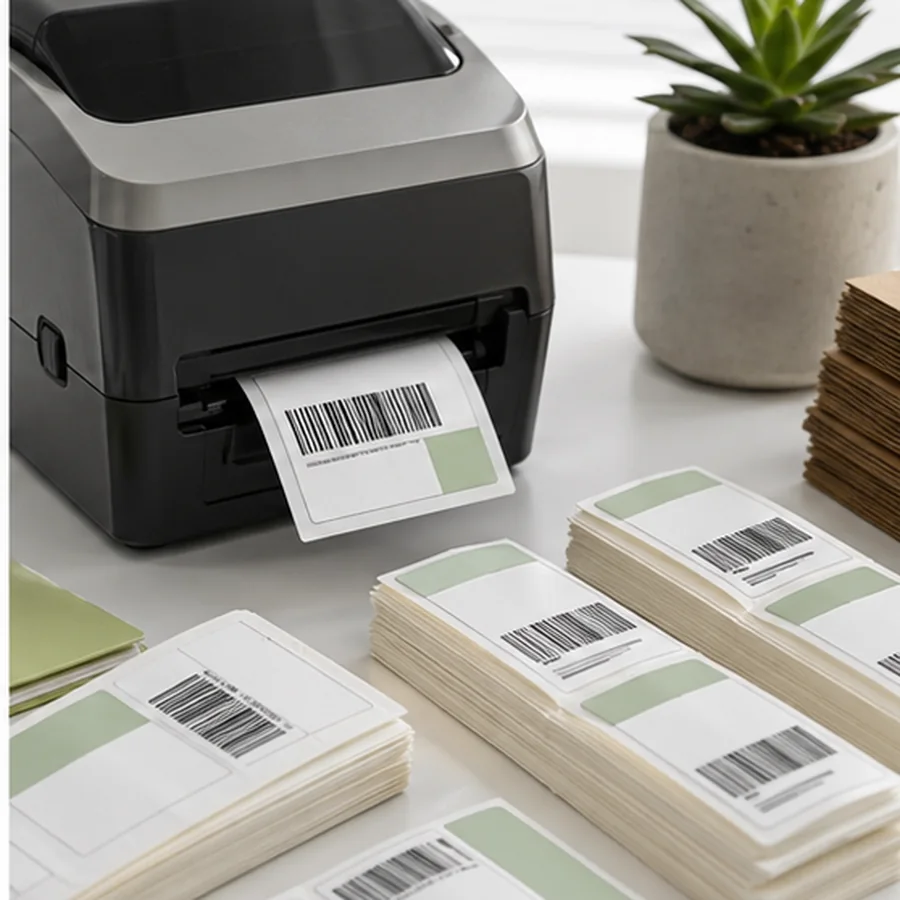
- Keep important content away from trim edges and label gaps.
- Use dark codes on a light background unless your scanner and standard allow another combination.
- Avoid decorative borders around the code area.
- Do not scale a saved barcode image after generating it. Regenerate at the needed size instead.
- For small labels, prioritize code, ID, and one useful text field.
Print a small test batch
Before printing 500 labels, print 3 to 10 samples on the real stock. Scan them with the devices your team uses, at the distance and lighting where they will be used. Put one label on the final surface, such as a shelf edge, bin, tool, box, bottle, or cable, and scan it again.
If the sample fails, change one thing at a time. Increase the code size, restore quiet zone space, adjust printer darkness or speed, clean the printhead, or simplify the encoded value. Then print another small sample. The goal is a repeatable template, not one lucky scan.
Prepare the spreadsheet, build one label template in Label Codes, print a few samples, and run the final check with the practical barcode label design checklist.