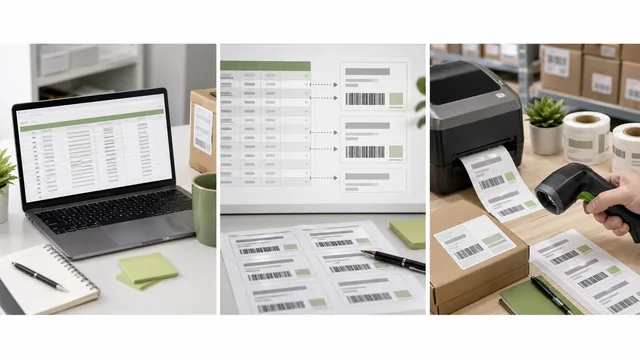
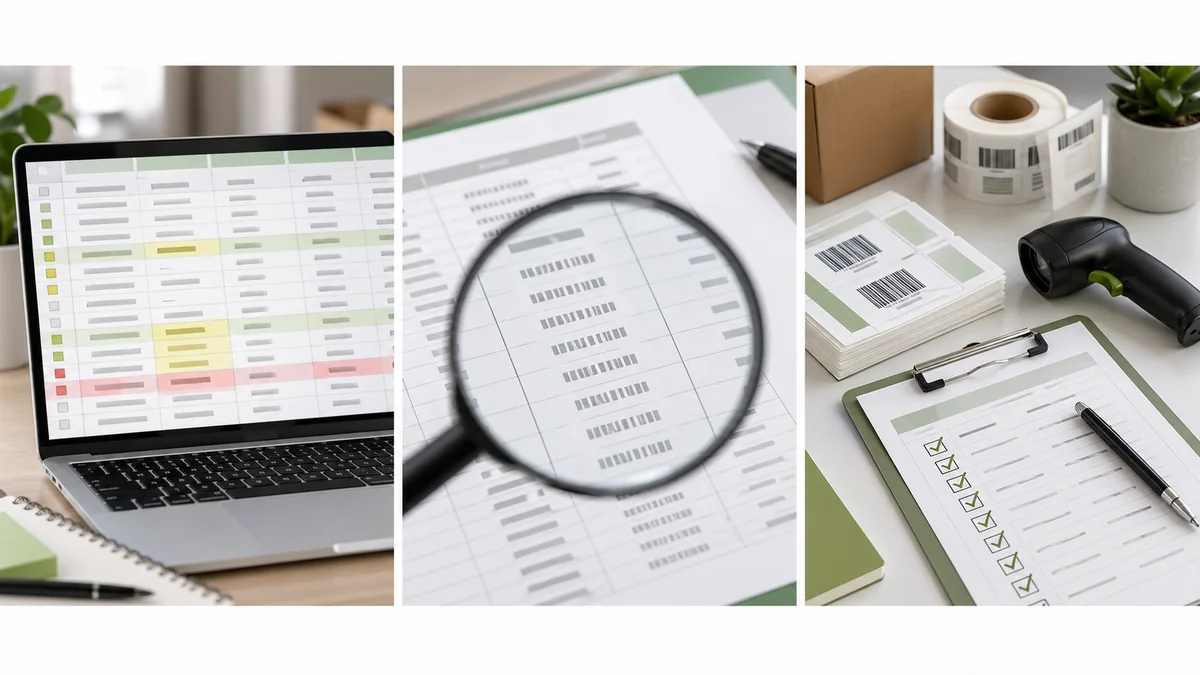
Barcode label data cleanup is the step that keeps a spreadsheet problem from becoming a printing problem. If Excel drops a leading zero, rounds a long identifier, or imports a blank row, the label can look professional and still encode the wrong value.
The short answer: treat barcode values as text, keep one exact identifier column, remove blanks, check duplicates, freeze column names, and scan a small test batch before using the labels in inventory, retail, assets, or receiving.
Treat barcode values as text
A barcode value may look numeric, but it often behaves like a name. 000482 is not the same identifier as 482. SKU-00482 is not a math problem. 123456789012345678 may be a valid external identifier, but spreadsheet software can change it if the column is handled as a number.
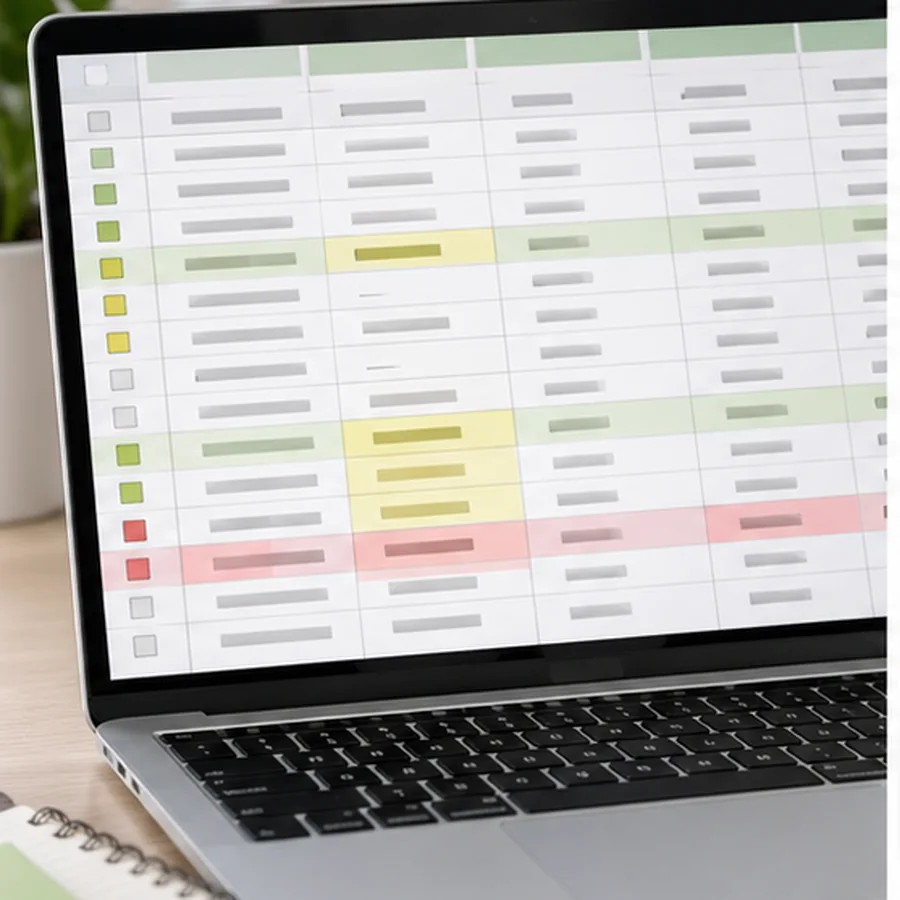
Microsoft's Excel guidance is direct about the risk: Excel can automatically remove leading zeroes, convert large numbers to scientific notation, and round values beyond 15 significant digits. Microsoft recommends formatting identifier columns as text when exact values matter: Microsoft support on leading zeroes and large numbers.
| Column | Safe example | What it prevents |
|---|---|---|
| BarcodeValue | 000482 | Leading zero loss and accidental number conversion. |
| HumanLabel | SKU-00482 | Labels that scan but cannot be checked by a person. |
| Location | A-03-02 | Ambiguous shelf or bin placement. |
| QtyToPrint | 2 | Manual copy-and-paste duplicates when multiple labels are needed. |
| BatchOrLot | LOT-26-0415 | Mixing operational batch text into the barcode value by mistake. |
| DoNotEncodeNotes | Fragile item | Long notes being encoded into the barcode instead of printed as text. |
Find leading zero and long number risks
Start with the column that will become the barcode. Sort it and look for values that changed shape. A six-character SKU list should not suddenly contain shorter values. A product code that used to show 000482 should not become 482. A long identifier should not appear as something like 1.23457E+17.
If you already lost the zeroes, formatting the damaged column may not restore the original IDs. Go back to the source system, export again, and import the column as text from the start. For CSV files, be careful when reopening the file in spreadsheet software, because automatic conversions can happen again before you notice.
Separate valid duplicates from bad duplicates
Duplicate barcode values are not always wrong. You may need three shelf labels for the same product, two labels for the same asset kit, or repeated bin labels for a long rack. The problem is not duplication by itself. The problem is unplanned duplication.

Keep quantity separate from identity. If one row should print three labels, use a quantity field instead of pasting the same row three times. If three different products share one barcode value, stop and find out whether the ID is wrong, the export was filtered badly, or the source system generated a duplicate.
Duplicate-check checklist
- doneSort by BarcodeValueGroup repeated values so unexpected repeats are visible.
- doneAdd a reasonMark expected repeats as shelf copies, kit copies, or location repeats.
- doneCompare namesCheck whether duplicate values point to different product names or asset records.
- doneUse quantity fieldsPrefer QtyToPrint for repeated labels from one record.
- doneStop retail assumptionsIf barcodes need to work outside your own system, verify the official identifier source before printing.
Shopify warns that its Retail Barcode Labels app only generates Code 128 barcodes and that generated 8-digit barcodes are not suitable for Google Shopping because they can be shared across multiple stores: Shopify retail barcode labels. Internal labels are different from unique retail identifiers.
Remove blank rows and unstable columns
Blank rows are easy to miss because they do not look dangerous. In a label import, they can create empty labels, skipped records, odd page breaks, or template rows with no barcode value. Delete blank rows and columns before import, then check the end of the file for empty records left by copy-and-paste work.
Column names should also be stable. Do not rename BarcodeValue to Code, Item barcode, and Scan me across three exports. A repeatable label workflow depends on repeatable headers. Avery's import flow, for example, relies on spreadsheet headers being mapped into the barcode field: Avery barcode spreadsheet import.
- Trim spaces before and after barcode values.
- Remove line breaks inside cells that will print on small labels.
- Keep prices, names, and notes out of the encoded identifier column.
- Use consistent capitalization when the receiving system treats codes as case-sensitive.
- Keep a backup copy of the original export before cleanup.
Run final QA before importing
Before opening the label tool, filter the barcode column for blanks, sort for duplicates, scan for scientific notation, and compare a few rows against the source system. Then export a fresh CSV and avoid reopening it casually. The goal is to import the same values you approved, not a version that spreadsheet software helpfully changed.
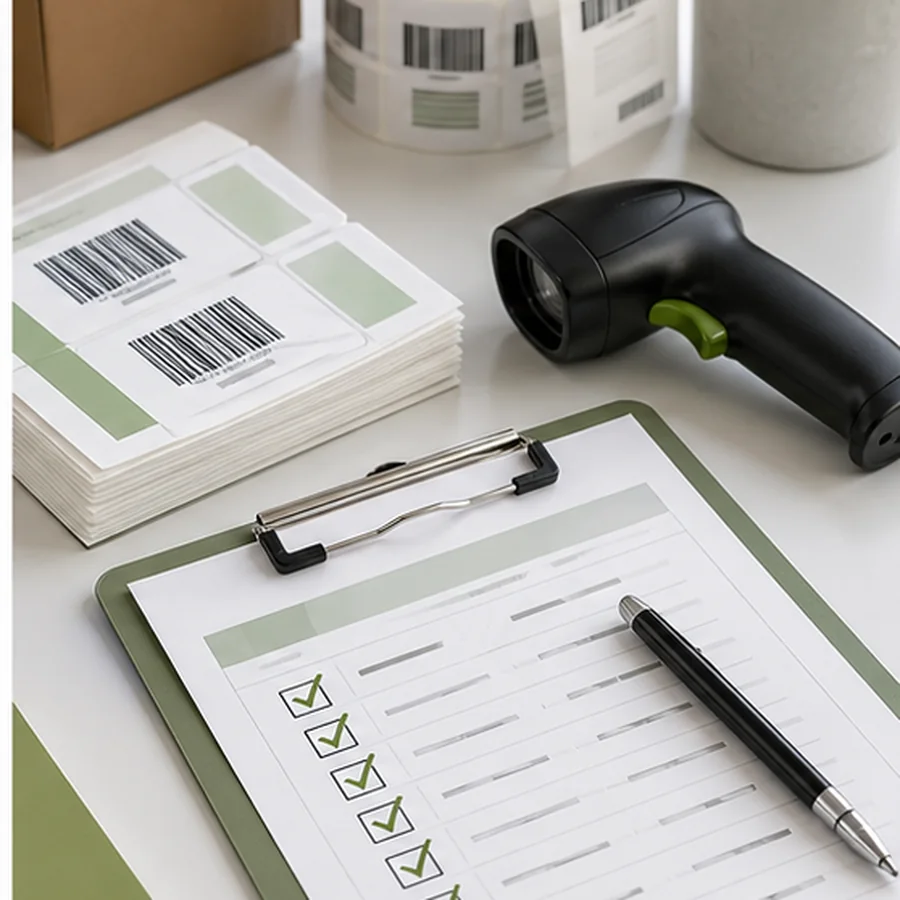
Final cleanup pass
- doneExact valuesConfirm examples such as
000482andSKU-00482still match the source. - doneNo blanksFilter BarcodeValue for empty cells and fix or remove those rows.
- doneNo surprise duplicatesResolve repeated values unless there is a documented reason.
- doneStable headersKeep the same column names used by the label template.
- doneTest importImport a small file first, preview labels, print 3 to 10 samples, and scan them.
After the data passes, follow the spreadsheet-to-label workflow in How to Print Barcode Labels from Excel or CSV. If you are still choosing the label layout, use the getting started guide to decide which fields belong in the code and which should stay readable.
Clean one copy of the spreadsheet, preserve exact identifiers as text, import a small sample into Label Codes, and approve the data before spending time on layout polish.