If you need to print barcode labels from Excel, the main job is not making a pretty label. The main job is protecting the exact value in each row, mapping the right columns to the label, and proving that the printed code scans before you spend a sheet or roll on the full batch.
The short answer: keep the barcode value in one clean text column, add only the readable fields the team needs, choose the label stock before designing, preview every row, print at 100 percent scale, and test a small sample with the real scanner.
Start with a clean spreadsheet
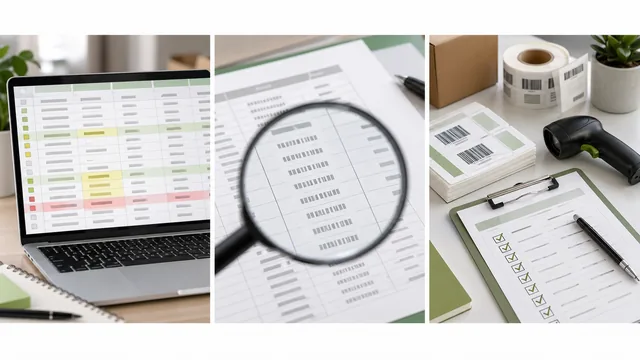
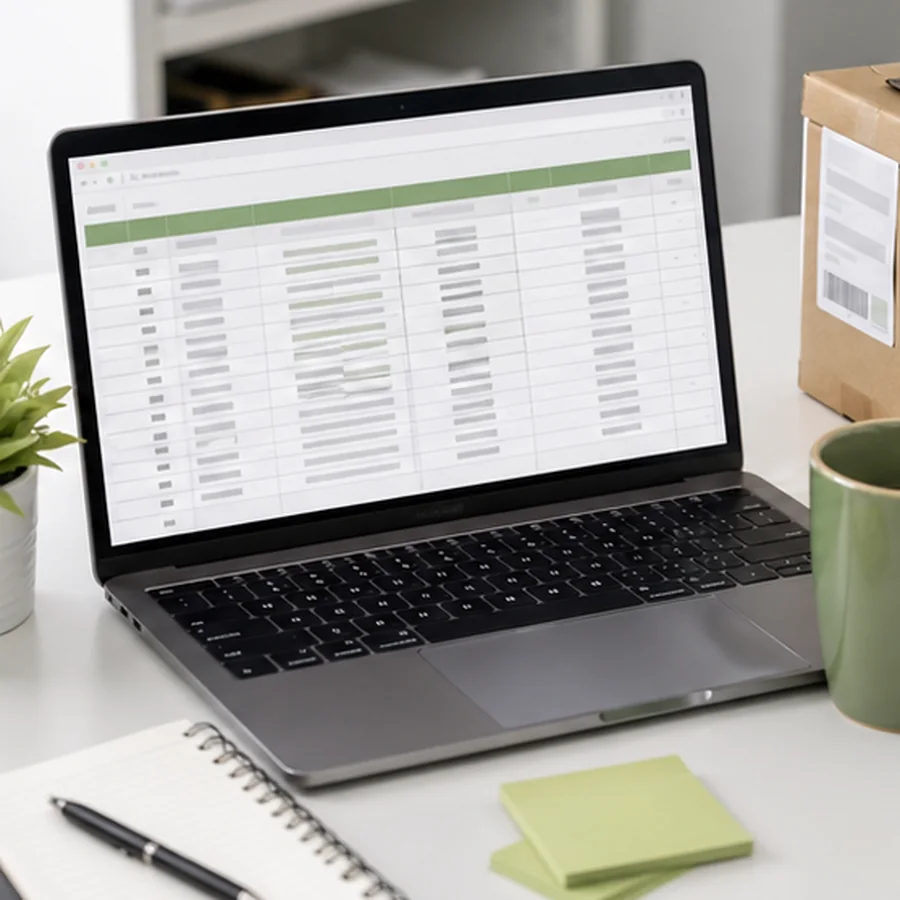
A good barcode label spreadsheet is boring on purpose. Each row should describe one item, location, asset, batch, or product variant. Each column should have one job. Do not mix product names, prices, notes, and barcode values in the same cell, because the label tool needs predictable fields.
| Column | Example value | Use on the label |
|---|---|---|
| BarcodeValue | 000482 | The exact value encoded in the barcode. |
| ProductName | Glass cleaner 12 oz | Readable item name for people checking the shelf or bin. |
| SKU | SKU-00482 | Readable fallback ID, often printed below the code. |
| Location | A-03-02 | Shelf, bin, room, or storage location. |
| Price | 12.99 | Optional retail field when the label needs a price. |
| QtyToPrint | 3 | Optional count for duplicate labels from one row. |
If your source is Excel, protect identifier columns before export. Microsoft warns that Excel can remove leading zeroes and convert large numbers to scientific notation unless those values are treated as text: Microsoft support on leading zeroes and large numbers. Values such as 000482 are not ordinary numbers in a label workflow. They are identifiers.
Pre-import checklist
- doneOne row, one label recordKeep each product, asset, bin, or variant on its own row.
- doneStable headersUse clear column names such as BarcodeValue, SKU, ProductName, Location, and QtyToPrint.
- doneText identifiersStore SKUs, GTINs, postal codes, asset IDs, and any zero-padded values as text.
- doneNo hidden blanksRemove empty rows at the end of the sheet before exporting to CSV.
- doneExpected duplicatesDecide whether repeated barcode values are intentional before printing.
Choose the barcode value column
The barcode should encode the value your scanner, POS, inventory system, maintenance record, or spreadsheet lookup expects. That value is not always the visible product name. For internal labels, it is often a SKU, asset ID, shelf location, work order, or batch ID. For retail or marketplace labels, it may need to come from a platform or standards body instead of your own spreadsheet.
Do not encode every useful detail just because the spreadsheet has it. A short, stable barcode value usually scans better and keeps the label easier to reprint. Put the product name, location, price, quantity, or lot as readable text around the code when those fields help a person.
Map fields into a label template
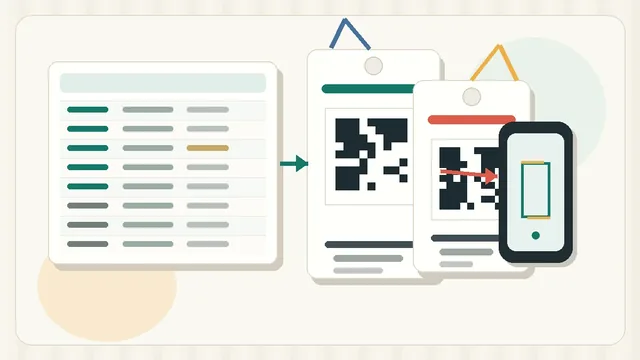
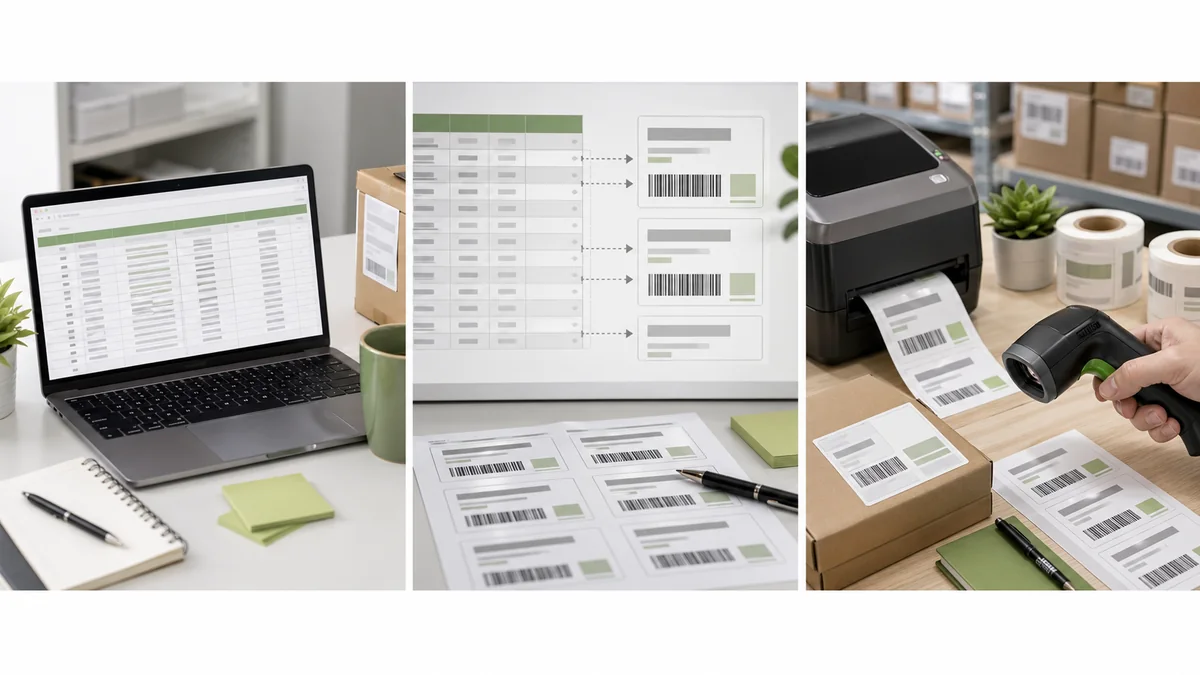
Once the data is clean, build the label around three priorities: scan value, human fallback, and print tolerance. Put the barcode or QR code where it has enough room. Add the readable SKU or asset ID close enough that someone can compare it to the scan result. Keep secondary fields small and remove them before shrinking the code.
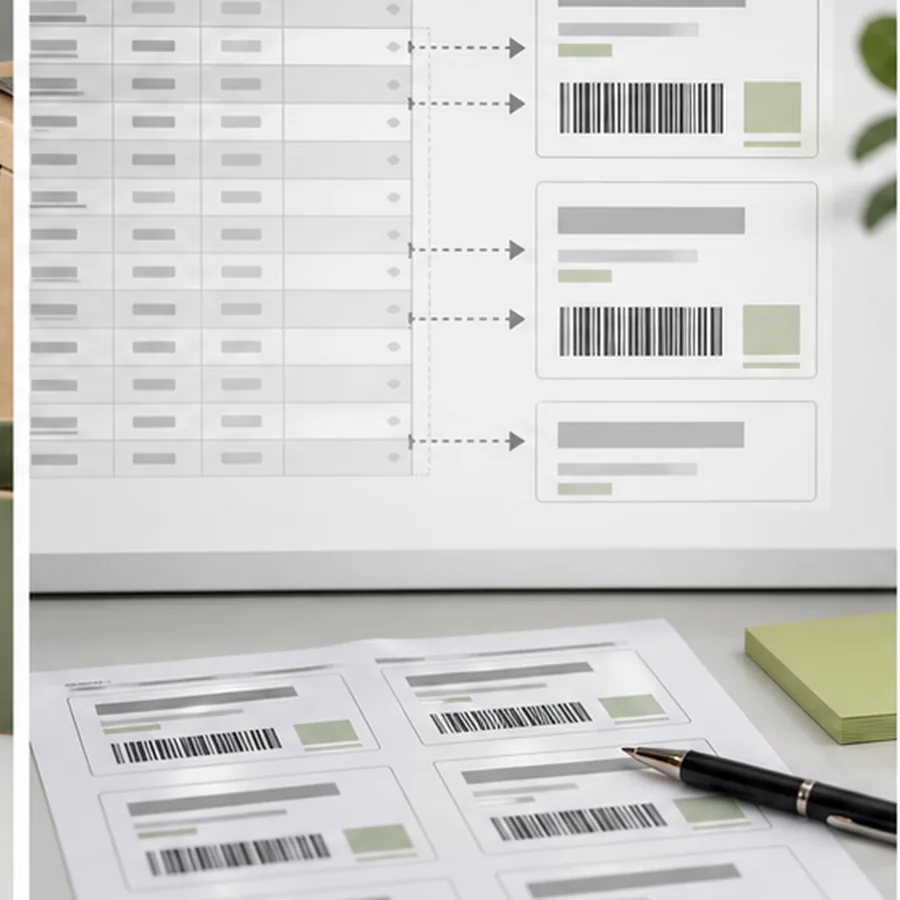
Avery's spreadsheet barcode workflow uses the same idea: import the spreadsheet, choose the barcode or QR option, then drag the spreadsheet header into the barcode field so the imported data merges into the template: Avery barcode spreadsheet import. In Label Codes, the same discipline applies even if the UI is different: decide which field is encoded before styling the label.
Use BarcodeValue, SKU, AssetID, LocationID, or another stable identifier. Keep it exact.
Print the SKU, asset ID, or location text so the label remains useful when a scanner is not available.
Add name, price, location, or quantity only when they support the task at the shelf, counter, or packing bench.
Pick the label stock before previewing
Designing before you know the stock creates alignment problems later. A 2 by 1 inch roll label has different limits than an Avery-style sheet, a small asset tag, or a shelf-edge label. Confirm the label width, height, page size, printer, orientation, margins, and whether the workflow uses sheets or thermal rolls.
This matters because print settings can change the physical barcode. Shopify's retail label help tells users to match the paper size to the label dimensions and verify printer settings before printing labels: Shopify retail barcode label flow. For sheet labels, also disable fit-to-page scaling unless the template specifically requires it.
Preview every row, not just the first one
The first row can look perfect while row 43 breaks the template. Long product names wrap. A location code may be wider than expected. A blank price field may leave an odd gap. A longer barcode value may become too dense for the label size.
- Check the shortest and longest barcode values.
- Check rows with missing optional fields.
- Check rows with special characters such as dashes or slashes.
- Check rows with multiple labels requested.
- Check the first and last labels on a sheet preview.
The costly mistakes are usually simple: importing the wrong column, losing leading zeroes, using barcode images from the spreadsheet instead of encoding text values, scaling the PDF in the print dialog, crowding the quiet zone, and printing the whole batch before scanning one sample.
Print a small batch and scan it
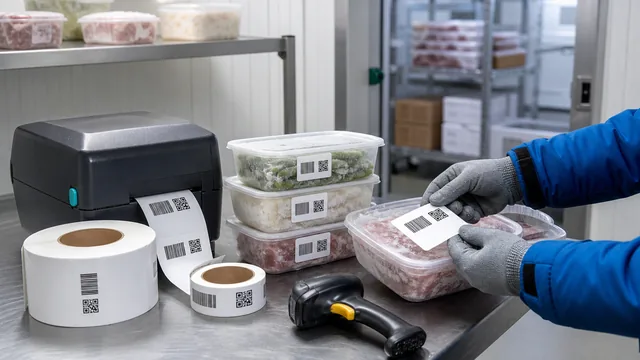
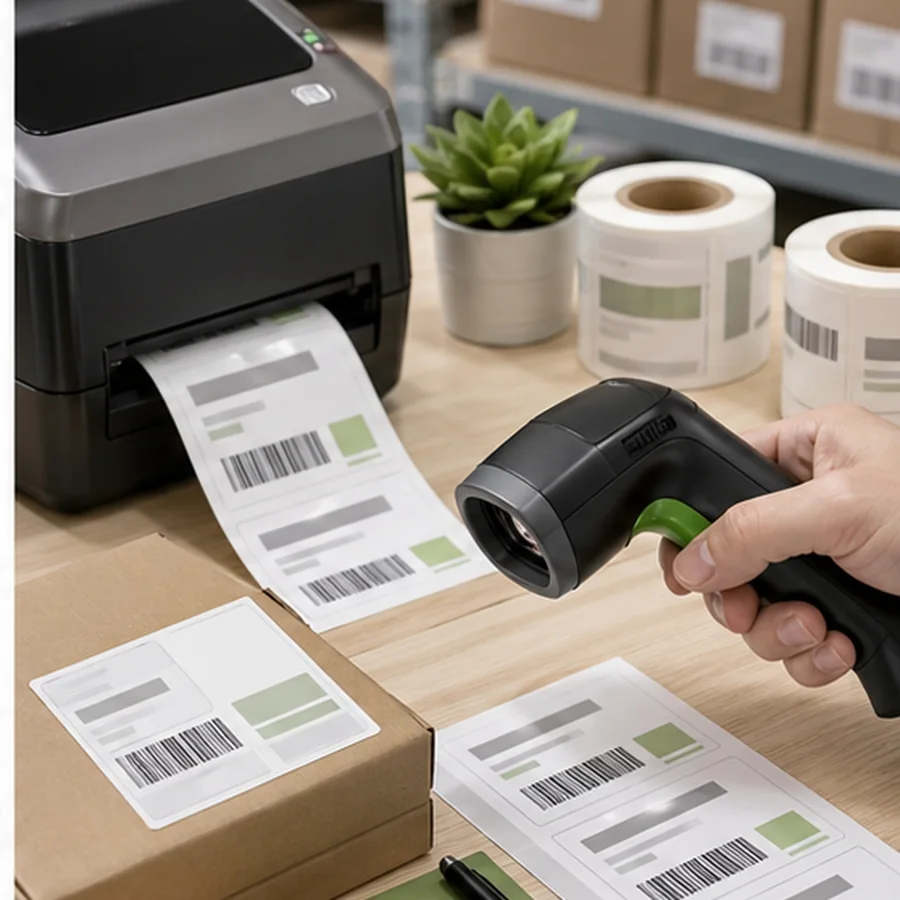
Print 3 to 10 labels on the actual stock, at 100 percent scale. Scan each sample with the device the team will use in daily work. If the labels will be applied to shelves, bins, bottles, tools, or bags, test one on that surface too. A flat desk scan is useful, but it is not the full workflow.
When a sample fails, fix one variable at a time. Restore quiet zone space, make the code larger, reduce the encoded length, adjust printer darkness or speed, or choose a bigger label. The practical barcode label design checklist is a good final pass before printing a full run. If this is your first label workflow, start with the broader getting started guide before building production templates.
Prepare a CSV with one exact barcode value column, open Label Codes, map the fields into a small template, print a few samples, and scan them before committing to the full batch.