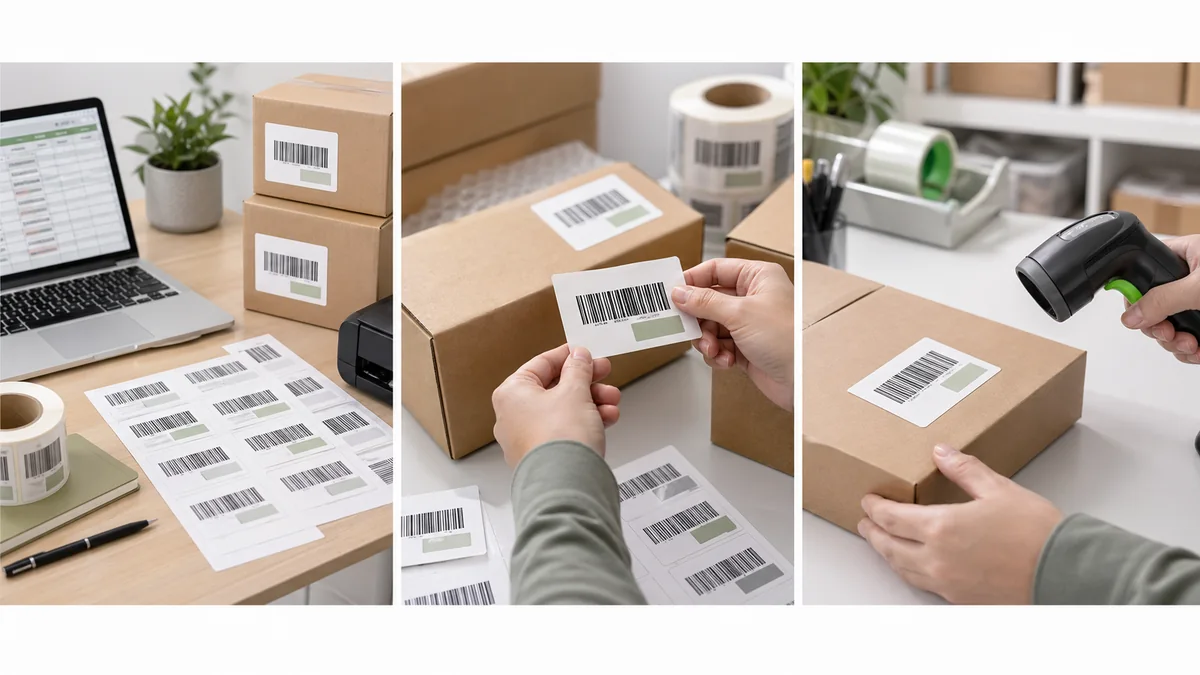
Amazon FBA FNSKU labels are not a place to guess. A clean-looking label can still cause receiving problems if it carries the wrong Amazon value, belongs to the wrong SKU, exposes another barcode, or was printed from outdated instructions.
The short answer: verify the current Seller Central workflow first, confirm your seller role and barcode eligibility, confirm whether the unit needs a manufacturer barcode or Amazon barcode, match each FNSKU label to the correct product and condition, cover other visible barcodes when required, place the label on a flat outside surface, and scan-test before shipping.
Verify in Seller Central first
Amazon requirements can change by marketplace, account, product, category, condition, barcode preference, and shipment workflow. Before printing production labels, open the current listing, FBA inventory, shipment, or Label Products page inside Seller Central. Do not rely only on an old PDF, a prep center habit, or a label template from a previous shipment.
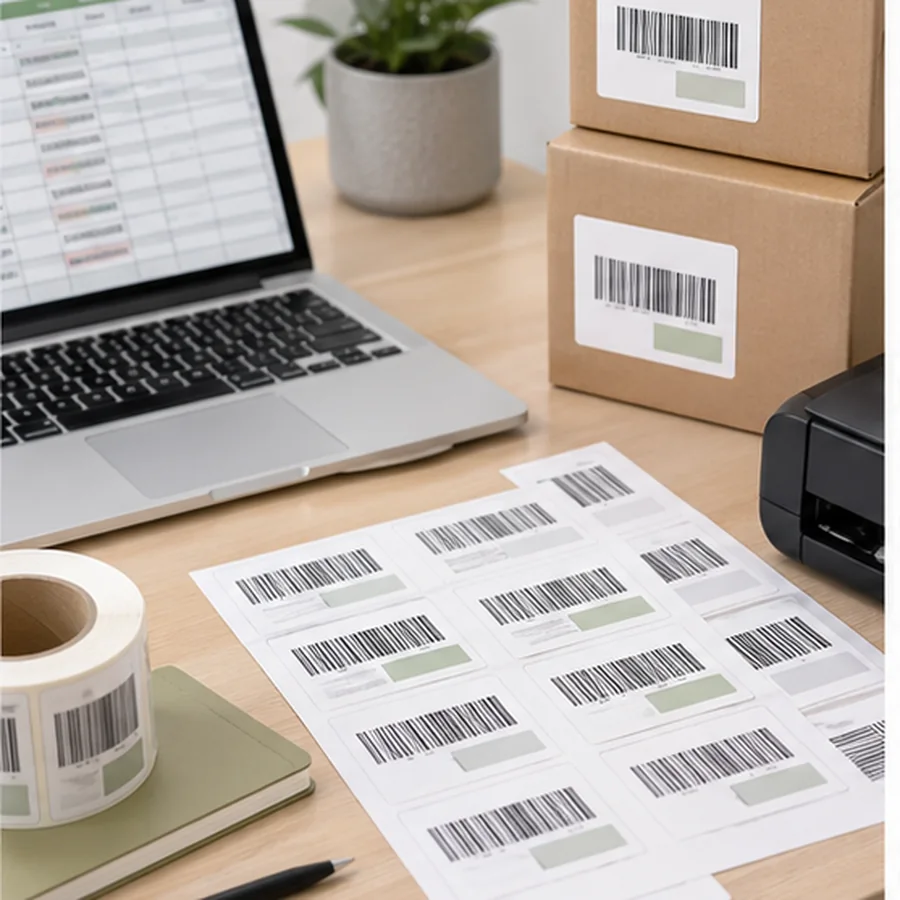
Amazon's public seller-forum guidance says all units sent to Amazon require a barcode, and that Amazon uses manufacturer barcodes, Amazon barcodes, and Transparency barcodes in different situations: Amazon Seller Central forum guidance. Use that as background, then verify the live requirement in your account.
Amazon also announced a role-based barcode change for inventory shipped on or after March 31, 2026. Brand owners with the Brand Representative selling role in Amazon Brand Registry no longer need Amazon barcode stickers to prevent commingling for products that already have manufacturer barcodes. Resellers who are not enrolled as Brand Representatives must use Amazon barcode stickers even when the product has a manufacturer barcode. Products without a manufacturer barcode require Amazon barcode stickers for both brand owners and resellers: Amazon Seller Central March 31, 2026 announcement.
Know what FNSKU means
An FNSKU is an Amazon fulfillment identifier. A public Amazon FBA product labeling PDF describes FNSKU as an identifier used by Amazon fulfillment centers to identify individual offers of a specific ASIN: Amazon FBA product label PDF. That PDF also says it expired in 2016 and to visit Seller Help for the latest version, so it should not be treated as current compliance guidance by itself.
A newer public Amazon barcode PDF says products that do not use a manufacturer barcode for tracking require an Amazon barcode, and that sellers can print Amazon barcodes from the Label Products page or Manage Inventory: Use an Amazon barcode to track inventory. Still, your current Seller Central workflow is the source of truth.
Verify these six things in Seller Central
- doneSeller roleConfirm whether the account is a Brand Representative in Amazon Brand Registry or a reseller for this product.
- doneBarcode typeConfirm manufacturer barcode, Amazon barcode, or another program barcode.
- doneExact valueConfirm the FNSKU or Amazon barcode value shown for this product or offer.
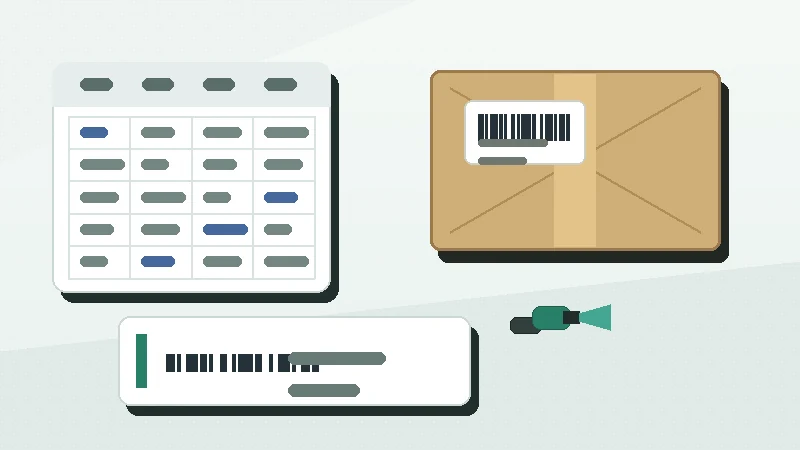
- doneProduct matchMatch product title, variation, condition, ASIN, SKU, and quantity.
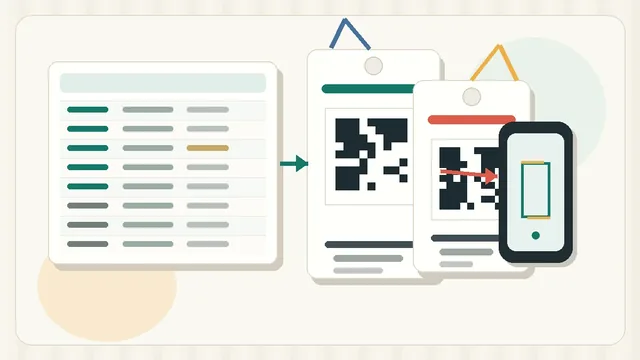
- doneLabel sourceUse the Seller Central PDF or recreate only from exact exported values and required fields.
- donePlacement ruleConfirm whether other visible UPC, EAN, ISBN, or GTIN barcodes must be covered.
Label placement and print checks
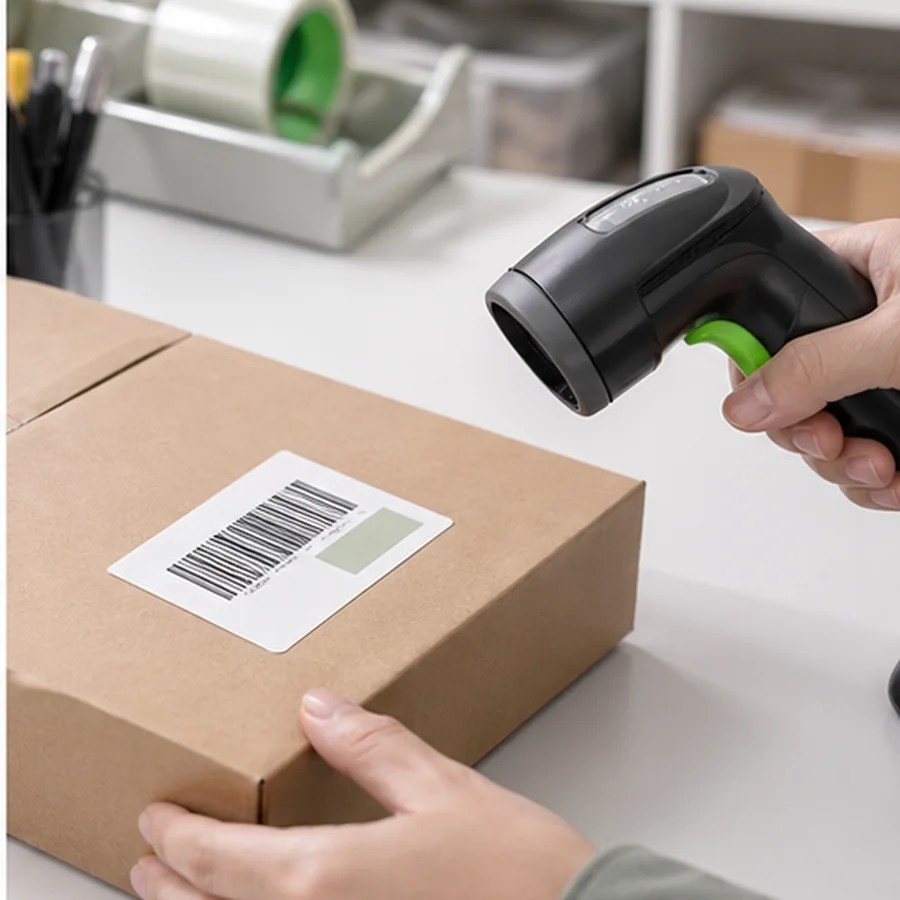
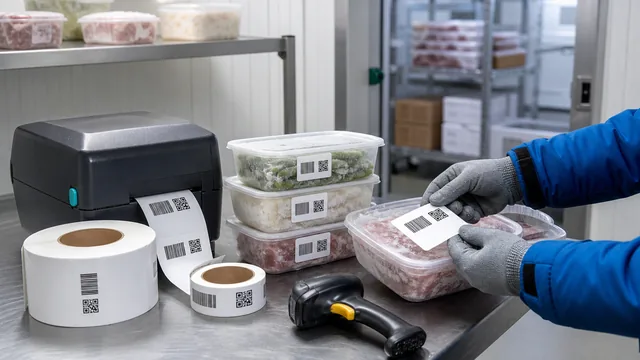
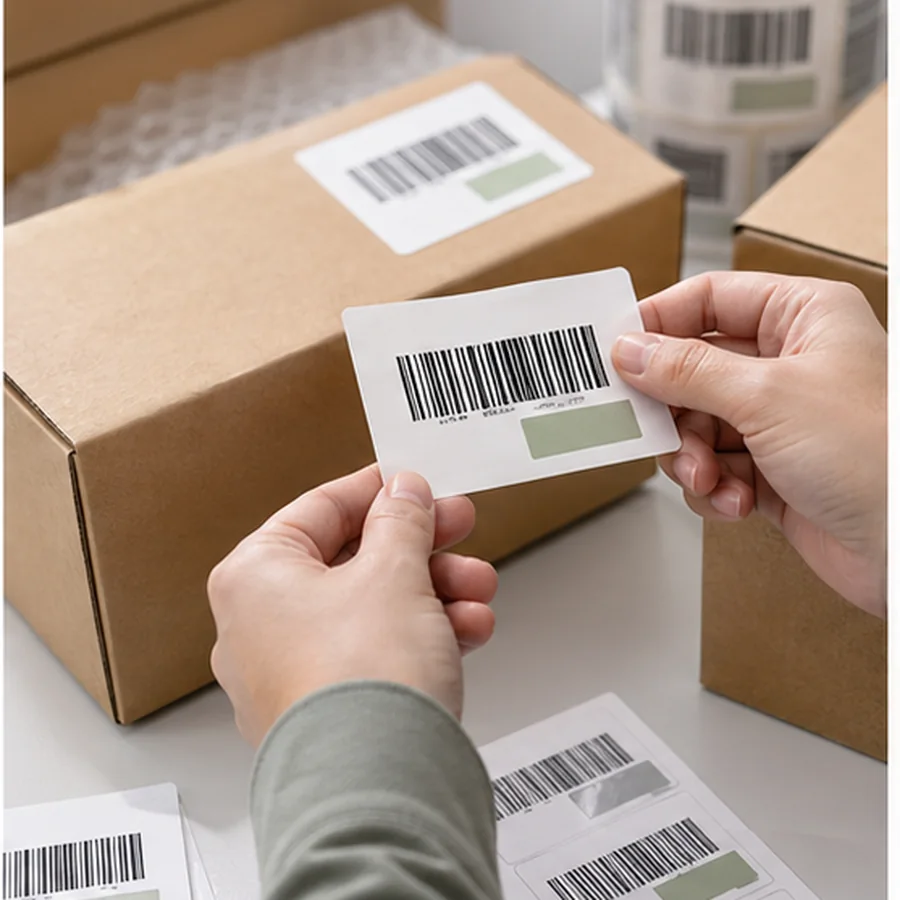
Amazon's public barcode PDF lists practical placement requirements: put the correct barcode on each item, cover other visible barcodes except certain serial-number barcodes, place the barcode on the outside of prep materials, avoid curves and corners, and leave 6 mm between the label edge and the packaging edge. It also says not to use inkjet printers for Amazon barcodes, recommends testing by scanning, and recommends 300 DPI or greater.
| Check | Good sign | Stop if |
|---|---|---|
| Product match | Title, variation, condition, and SKU match the unit. | Two similar variants share a label pile. |
| Barcode coverage | Only the intended scannable product barcode is visible. | Old UPC, EAN, or ISBN is still exposed when Amazon barcode is required. |
| Placement | Flat outside surface, not a seam, curve, or corner. | Barcode bends around packaging or crosses an edge. |
| Print quality | Dark, crisp, non-reflective label that scans. | Smudged, photocopied, low-contrast, or scaled output. |
| Workflow match | Label came from the current shipment or current inventory workflow. | Template was reused from an older product or marketplace. |
This guide is a practical pre-print checklist, not Amazon compliance advice. Always follow the current instructions shown in your Seller Central account and the official help pages for your marketplace before shipping inventory.
Avoid common FBA label mistakes
- Printing the right FNSKU on the wrong variation or condition.
- Leaving another scannable product barcode visible when an Amazon barcode is required.
- Applying labels over curves, seams, corners, shrink wrap wrinkles, or damaged packaging.
- Scaling a PDF to fit the page instead of preserving label size.
- Sending the manufacturer a label file without clear product-to-label matching instructions.
For product-code terminology, read SKU vs UPC Barcode. If printed labels fail, use Barcode Labels Not Scanning?. If sheet labels drift, use Barcode Labels Misaligned?.
Before printing the batch, open the live Seller Central workflow, export or download the correct labels, print one page or a few thermal labels, apply one to a sample unit, and scan it.