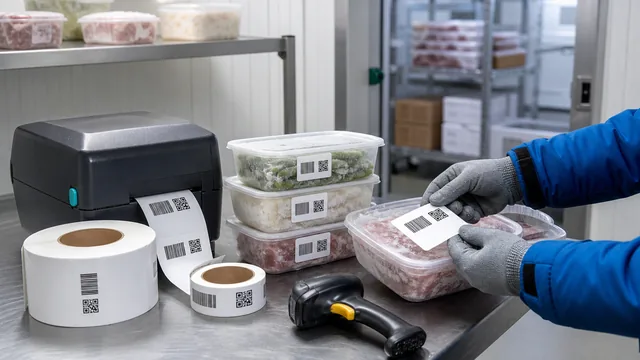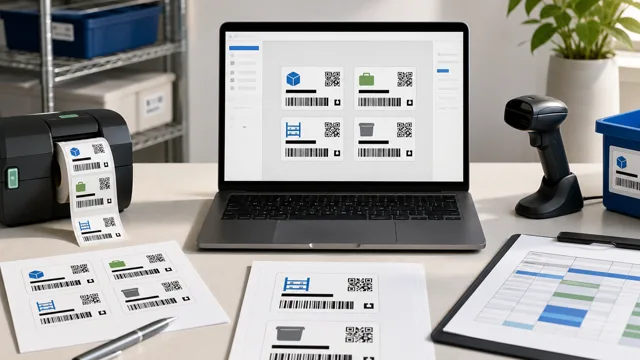
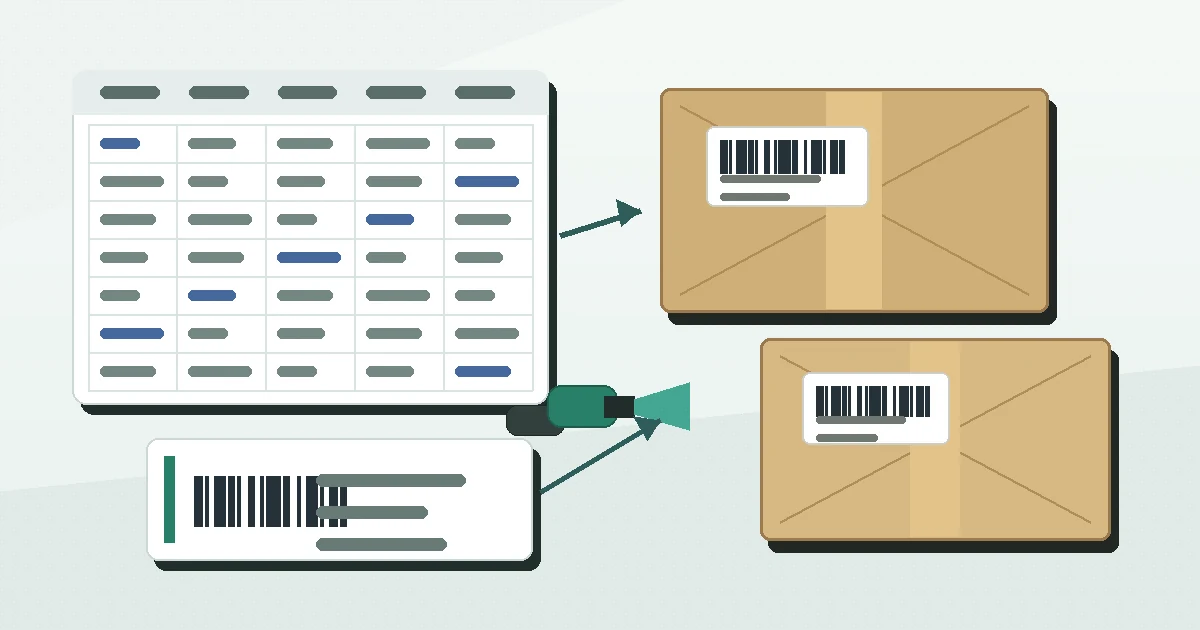
Receiving barcode labels fail quietly. A carton arrives, the purchase order looks close enough, someone prints labels from a spreadsheet, and the mistake is not found until inventory counts, lots, or shelf locations disagree. The label did not cause the bad data, but it carried that bad data onto the floor.
A better receiving workflow starts before the printer. Decide what the label must confirm, clean the purchase-order export, protect identifiers such as PO-000184 and SKU-00482, then print a small test batch before labeling every carton or inner pack.
Start with the receiving decision
A receiving label should answer one operational question at a time. Is this carton part of the expected purchase order? Does it contain the right SKU and quantity? Does it need lot tracking, serial tracking, expiration review, or a putaway bin? If the label tries to answer all of those questions without a clear hierarchy, staff still have to guess.
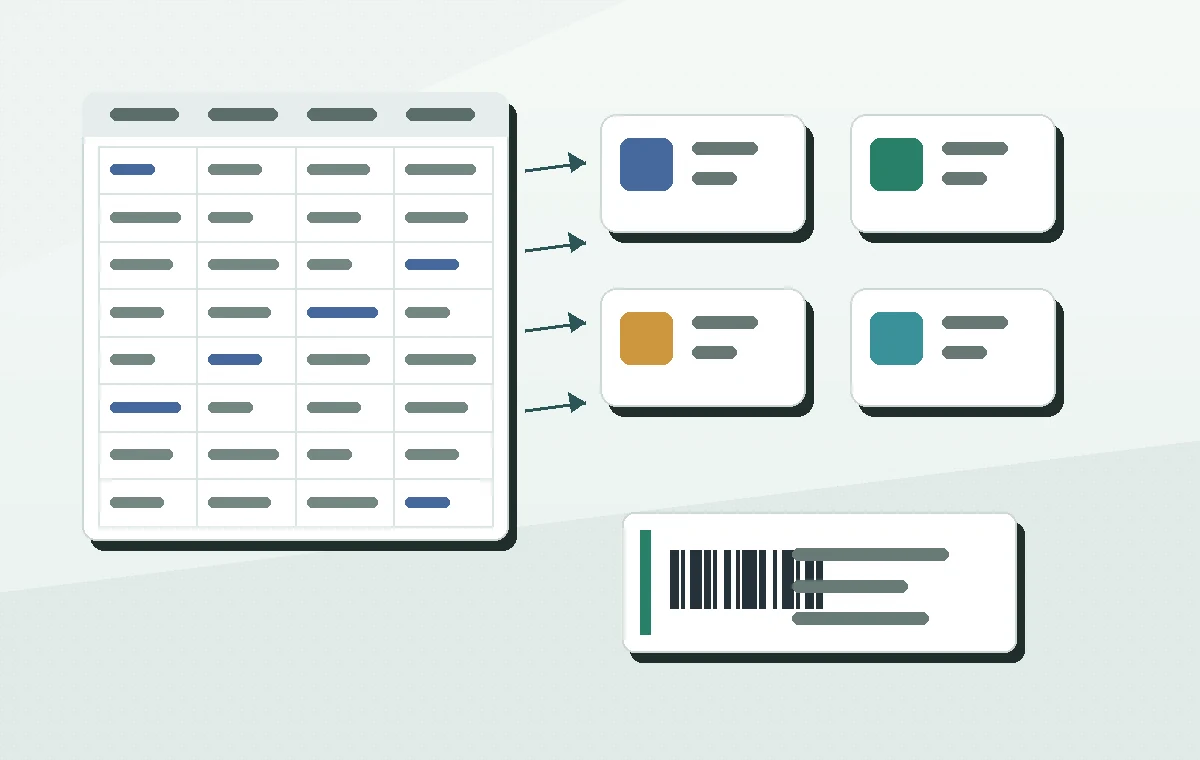
Use different label intent for different moments. A carton label can identify the shipment and PO line. An item label can identify the SKU or unit. A putaway label can identify the destination bin. Reusing one crowded label for every step often makes scanning slower and reprints harder.
| Column | Example | Use on label |
|---|---|---|
| ReceiptID | RCV-2026-00073 | Encode when each receiving batch needs a traceable record. |
| PO | PO-000184 | Print and optionally encode for purchase-order lookup. |
| SKU | SKU-00482 | Encode on item or carton labels. |
| QtyReceived | 24 | Print as readable text for count checks. |
| Lot | L6A-0918 | Print when lot tracking matters. |
| Expiration | 2027-09-30 | Print only when the receiving process verifies dates. |
| PutawayBin | A-03-02-B-04 | Print or encode when the label directs storage. |
Clean the purchase-order export
Most receiving label problems begin in the file. Purchase-order exports may include cancelled lines, partial receipts, blank bin fields, duplicate SKUs, supplier item numbers, internal item numbers, and dates formatted for display instead of sorting. Clean those fields before designing the label.
Treat identifiers as text. A PO value such as 000184, a SKU such as 00482, or a long supplier lot number should not be allowed to change when the spreadsheet is opened. Quantity fields can stay numeric, but scannable identifiers should preserve every character exactly.
Receiving data checklist
- doneOne row per printed labelDecide whether each row represents a carton, each SKU line, or each individual unit.
- doneProtected identifiersImport PO, SKU, lot, serial, and receipt values as text when exact characters matter.
- doneNo cancelled linesRemove rows that should not receive labels.
- doneQuantity reviewedSeparate ordered quantity from received quantity if partial receipts are common.
- donePutaway readyLeave bin fields blank only when staff will assign locations after inspection.
Choose what to encode
The scannable value should match the receiving system. If staff scan into an inventory tool that expects the SKU, encode the SKU. If the workflow opens a receiving record, encode the receipt ID or a short receiving URL. If the scan confirms a putaway location, encode the location ID. Do not encode a long sentence of PO, SKU, supplier, quantity, lot, and notes unless the receiving app expects that exact format.
Use for shipment, PO line, carton count, or receiving batch lookup.
Use for SKU, unit count, lot, serial, or expiration fields that travel with the stock.
Use when staff need a visible storage destination after count and inspection.
Design for dock conditions
Receiving labels are scanned on boxes, pallets, carts, and shelves. They may be scanned while someone is holding a clipboard, opening cartons, or moving stock. Keep the barcode or QR code away from edges, seams, straps, tape, folds, and heavy texture. Put the human-readable SKU, quantity, lot, and bin near the code so staff can verify the scan.

For carton labels, larger is usually safer than dense. For small item labels, remove fields that do not help the next step. The quiet zone around a 1D barcode or QR code is more important than fitting another line of supplier notes. If the label stock is small, reduce the encoded value and printed fields before shrinking the code too far.
- Print PO and SKU as readable text even when they are encoded.
- Use Code 128 for compact SKU, PO, and bin identifiers when your scanners support it.
- Use QR when the scan should open a receiving page, record, or form.
- Avoid placing labels over carton corners or tape seams.
- Keep supplier notes out of the scan value unless the receiving system needs them.
Test the receipt before the full run
Pick a real purchase order with a few awkward rows: a long SKU, a partial quantity, a blank lot, a long supplier item number, and a bin that will not fit nicely on one line. Import those rows, print labels at actual size, and scan them through the receiving workflow before the full truck or pallet arrives.
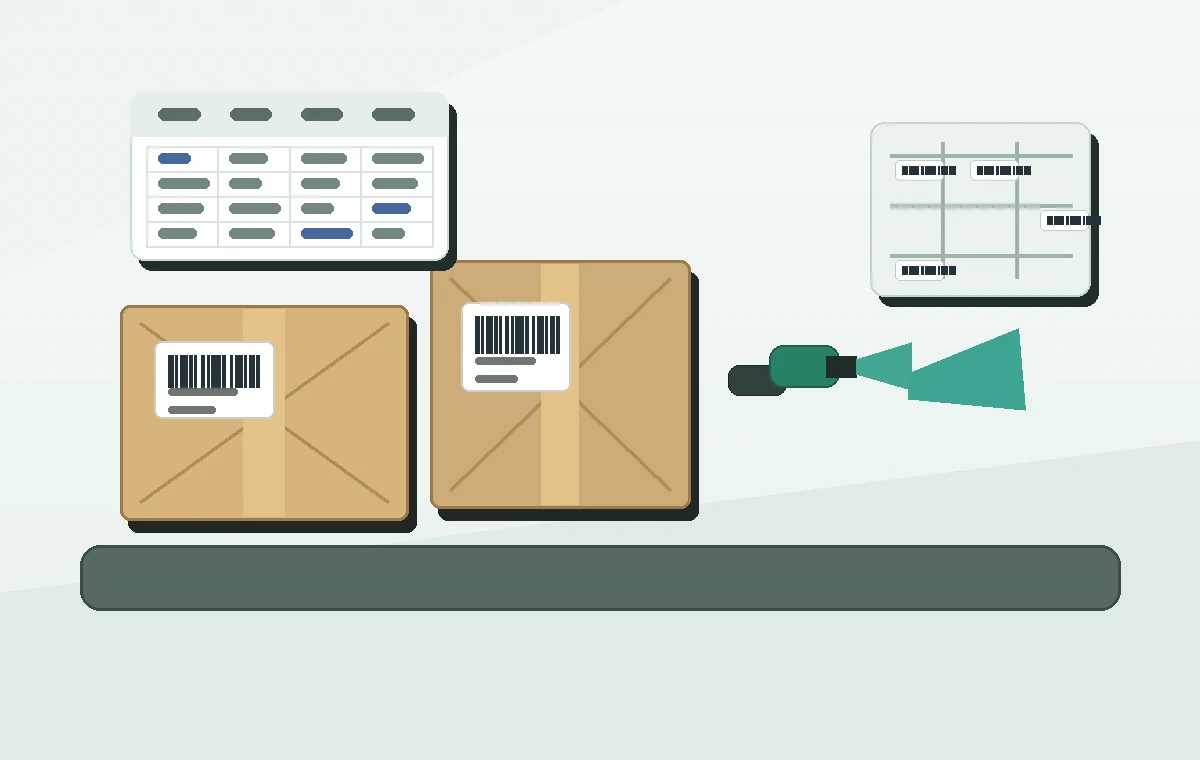
Check the label against the physical workflow, not only the screen. Can staff scan the label while the carton is on a pallet? Is the quantity readable from normal working distance? Does the label still scan after being applied to corrugate? Can a replacement label be printed from the same row without changing the receipt ID?
Receiving test print
- doneImport 10 mixed rowsInclude long SKUs, short SKUs, lots, blank lots, partial quantities, and long bin IDs.
- donePreview field mappingConfirm the barcode value is not accidentally using supplier notes or the wrong SKU column.
- donePrint actual sizeDisable fit-to-page and check alignment on the label stock.
- doneScan like the dockUse the same scanner, phone, app, lighting, and carton surface used by receiving staff.
- doneApprove reprintsConfirm how damaged carton labels and corrected quantities will be handled.
Plan exceptions before they arrive
Receiving is full of exceptions: split shipments, overages, shortages, damaged items, mixed cartons, missing lots, and products that need inspection before putaway. The label workflow should show which values are confirmed and which are temporary. A blank PutawayBin can be acceptable during inspection, but it should not look like a finished shelf destination.
Keep the source spreadsheet or receiving export with the printed batch. If a carton label is damaged, reprint the same record. If the quantity changes after count, update the receiving row first and then reprint. That keeps the label, spreadsheet, and inventory system pointing to the same receipt.
For broader spreadsheet setup, use How to Print Barcode Labels from Excel or CSV. If the receiving labels will be applied to shelves after putaway, compare the location rules in Warehouse Bin Location Labels for Small Teams. Review Barcode Quiet Zone and Label Size before squeezing long PO and SKU values onto small stock.
Prepare a 10-row receiving spreadsheet, build one carton label and one item label in Label Codes, then scan both through count and putaway before printing the full receipt.