When barcode labels are not scanning, the worst first move is reprinting 500 more labels with the same settings. A scan failure can come from the data, the barcode type, the layout, the printer, the label material, the surface, or the scanner configuration.
The short answer: confirm the encoded value, check scanner support, restore quiet zones, improve contrast, increase size, adjust thermal darkness or speed, test on the final surface, and scan a few new samples before printing the full replacement batch.
Troubleshooting flow
| Check | What to look for | Likely fix |
|---|---|---|
| Encoded value | Scanner reads a value, but the system rejects it. | Print the correct column or restore lost leading zeroes. |
| Barcode type | Scanner reads Code 128 but not QR, or POS expects UPC. | Use the format required by the receiving system. |
| Quiet zone | Text, edge, or border sits too close to the code. | Move content away or use a larger label. |
| Contrast | Bars are faded, gray, glossy, red, or printed on dark stock. | Use dark print on light, non-reflective stock. |
| Size | The code was shrunk to fit a crowded label. | Make the code larger or reduce encoded length. |
| Printer settings | Bars are smudged, broken, too dark, or too light. | Adjust darkness, speed, DPI, media, and clean the printhead. |
| Surface | Label is on a curve, seam, texture, or damaged area. | Move to a flatter surface or use a shorter code. |
Check the data before the design
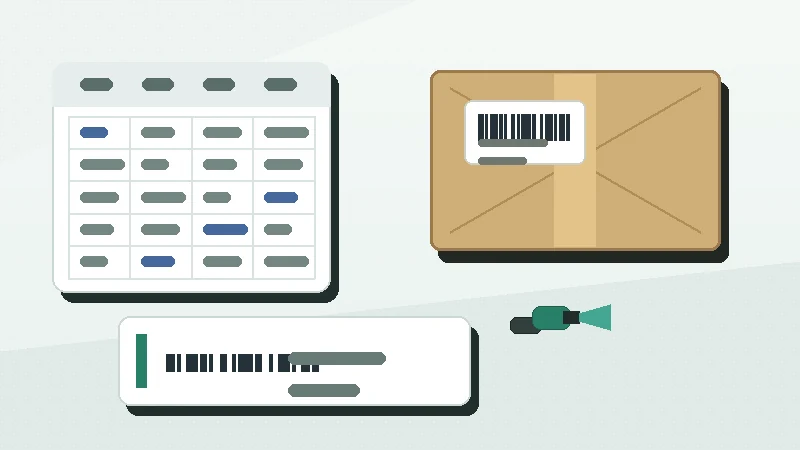
If the scanner beeps but the software rejects the item, the barcode may be readable but wrong. Compare the scan result against the source row. Look for lost leading zeroes, scientific notation, duplicate values, extra spaces, a wrong column, or a SKU where a UPC, FNSKU, or location ID was expected.
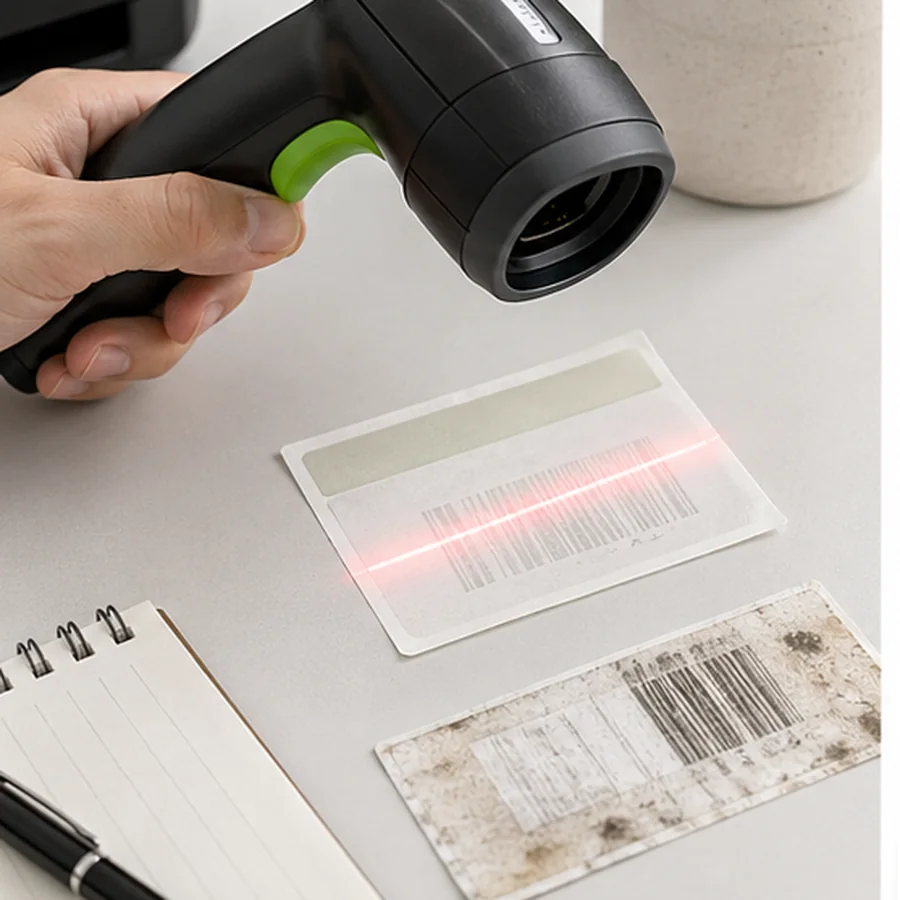
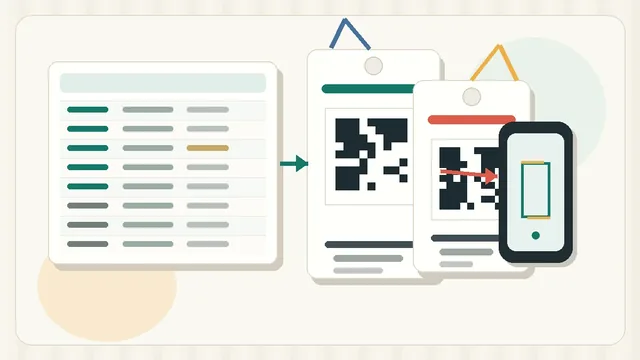
This is especially common with spreadsheets. Fix the source and re-import a small sample instead of editing barcode labels by hand. The barcode label data cleanup checklist covers leading zeroes, duplicates, and blank rows before they become print problems.
Check quiet zone, contrast, and size
Scan failures often come from layout pressure. Shopify's barcode FAQ names quiet zone, contrast, X-dimension, print resolution, and orientation as print requirements that affect readability: Shopify barcode FAQ. If the code is squeezed against a border or the label edge, fix that before blaming the scanner.
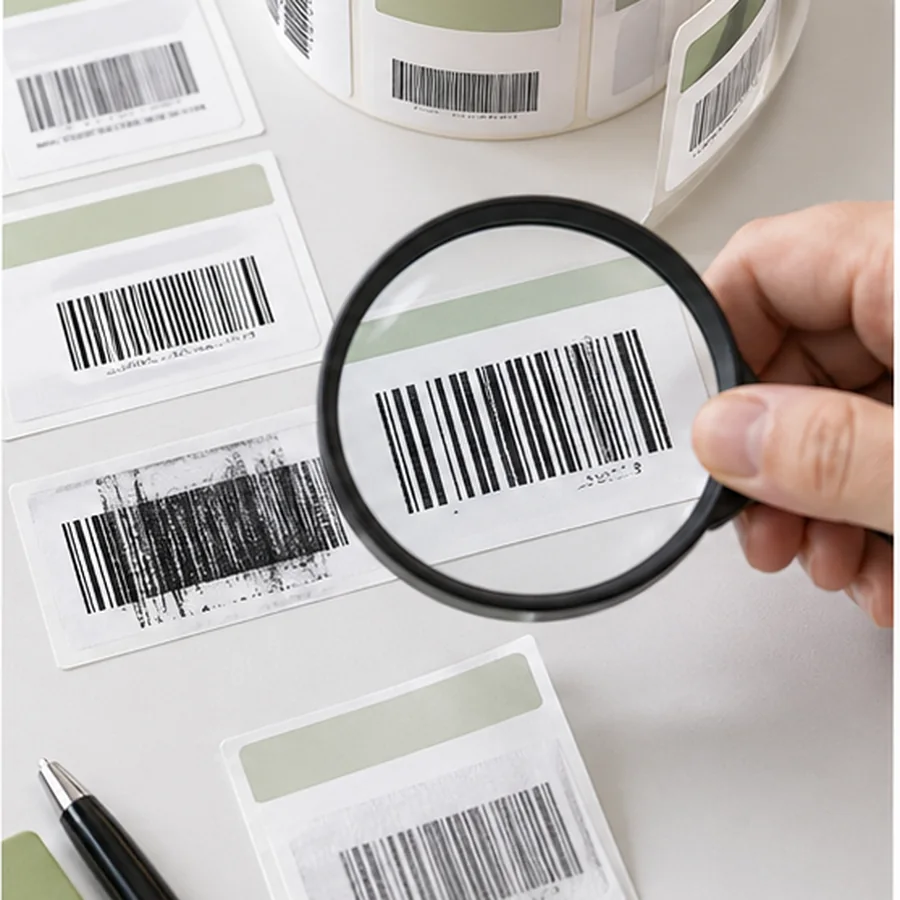
DuraFast's troubleshooting guide also points to fuzzy lines, low DPI, poor contrast, incorrect size, placement on curves or seams, material choice, skipped validation, and wrong symbology as common scan-failure causes: DuraFast scan failure causes. Treat that list as a practical inspection order.
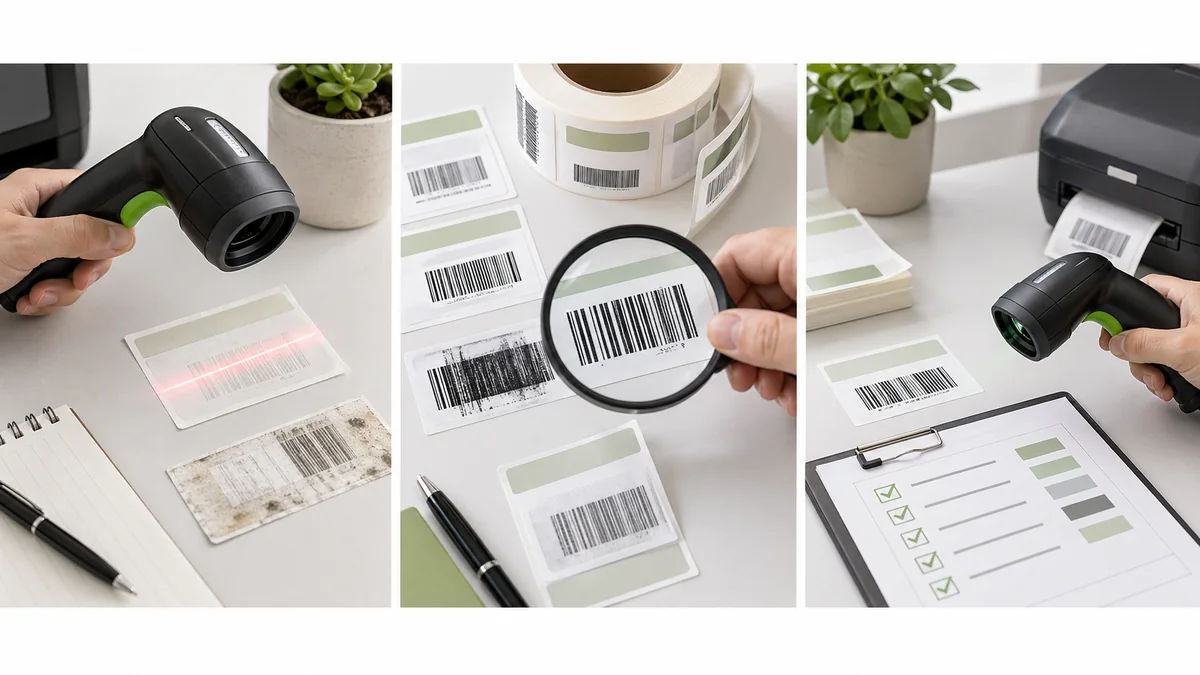
Do not rely on visual inspection alone. Human eyes are good at recognizing the idea of a barcode, but scanners measure edges, contrast, and spacing. A label can look sharp under office light and still fail in a warehouse aisle, at a glossy retail counter, or after being wrapped around a curved package.
Check thermal printer settings
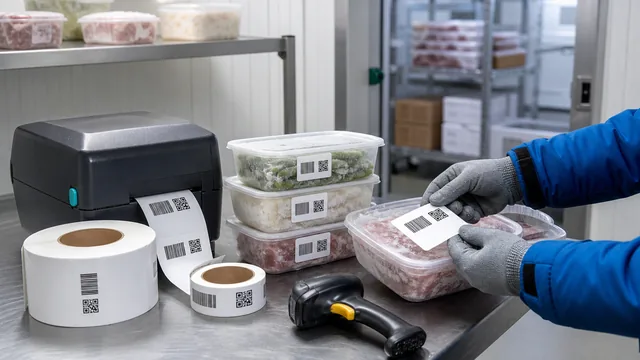
Thermal labels can fail when print darkness or speed is wrong. Too light and bars break. Too dark and bars spread. Too fast and edges lose definition. Zebra explains that thermal label printers are well suited for barcode labels because they produce accurate images with edge definition, but the right method and media still matter: Zebra thermal printing overview.
Print one label before reprinting 500
- doneChange one thingAdjust size, quiet zone, darkness, speed, or stock one at a time.
- doneUse real stockPlain paper can prove layout, but it cannot prove final label material.
- doneUse real scannersTest with the handheld, POS, phone, or app used in daily work.
- doneUse real surfacesScan after applying to a box, shelf, bottle, tool, bag, or bin.
- doneRecord the fixSave the working printer preset and label template for the next batch.
Check scanner format support
A scanner can be working correctly and still reject a label format it is not configured to read. Some devices are 1D-only. Some imagers can read QR but do not send the data in the format your software expects. Some POS systems expect UPC or EAN and will not accept a private Code 128 SKU.
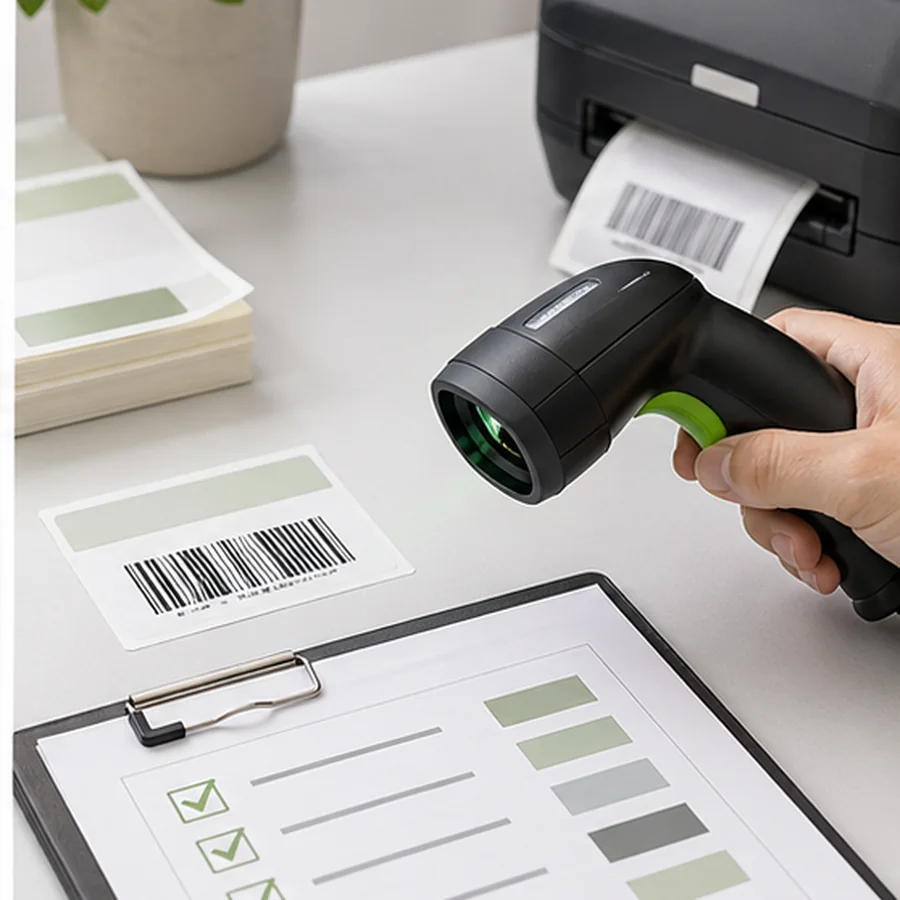
If you are not sure the format is right, review Code 128 vs QR Code Labels and the barcode quiet zone guide before redesigning the whole label.
Scan one printed label into a plain text field, compare the exact value to the source data, then fix the first mismatch you find before changing the rest of the workflow.