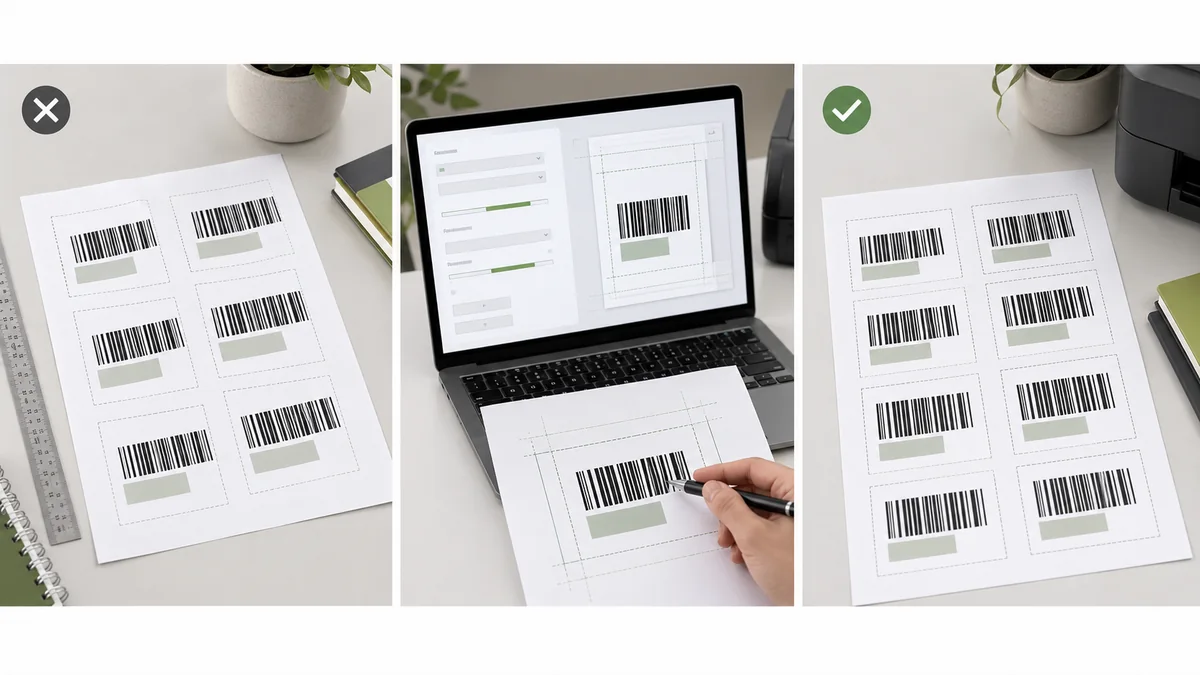
Barcode labels misaligned on sheets are frustrating because the PDF can look correct on screen while the printed labels drift across the page. The fix is usually not redesigning every label. It is checking template, scale, paper size, feed, and only then making small alignment adjustments.
The short answer: confirm the exact Avery-style template, print at 100 percent or actual size, verify paper size and media settings, run a plain-paper overlay test, and adjust margins only after scale and template are proven correct.
Start with the exact template
Avery-style label sheets often look similar but differ by tiny measurements. A 30-up address label sheet, a shipping label sheet, and an off-brand equivalent can have different top margins, side margins, gaps, and printable areas. If the wrong template is selected, no amount of careful barcode layout will save the final print.
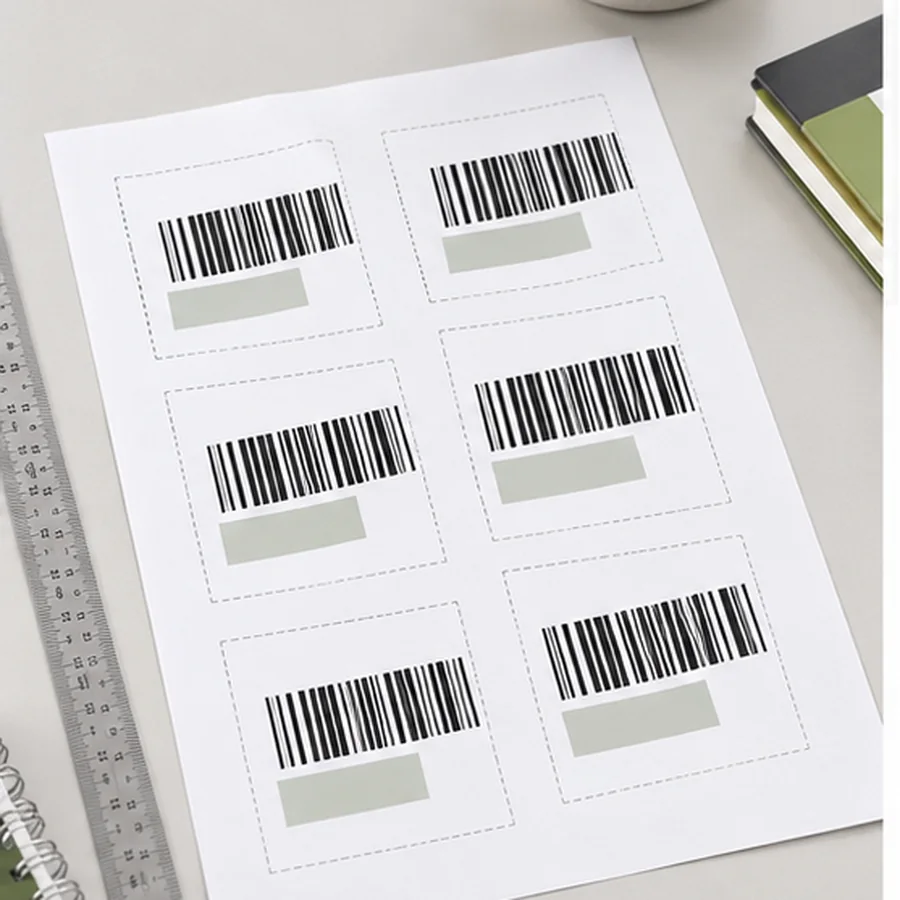
Avery's own support for barcode imports depends on choosing a label template and mapping spreadsheet headers into the label: Avery barcode spreadsheet import. That template choice is the foundation. Confirm product number, page size, orientation, and sheet dimensions before editing the design.
Turn off scaling before adjusting margins
Print scaling is the most common hidden cause. Avery's print troubleshooting guidance says to check page or paper size and make sure scale is set to 100 percent: Avery print troubleshooting. Avery's alignment adjustment article also emphasizes correct page size and custom scale at 100 percent before using alignment tools: Avery alignment adjustment.
Alignment checklist
- doneExact templateMatch the sheet product number or exact dimensions.
- doneActual sizeSet scale to 100 percent, actual size, or no scaling.
- donePaper sizeUse Letter or A4 to match the sheet, not whatever the printer guessed.
- doneMedia typeChoose labels, heavyweight, cardstock, or the closest supported setting.
- doneFeed pathUse manual feed or the straightest tray if the printer handles thick stock poorly.
- doneQuality settingUse best or high when barcode clarity matters.
Run the plain-paper overlay test
- Print the label page on plain paper at 100 percent scale.
- Place the printed page behind one real label sheet.
- Hold both pages up to a bright window or light source.
- Check the top row, middle rows, bottom row, left edge, and right edge.
- If the whole page is too small or too large, fix scaling before touching margins.
- If the whole page shifts the same amount, use alignment adjustment.
- If drift grows down the page, check scaling, paper size, feed, and template match again.
Use plain paper until the overlay test lines up. A barcode label sheet is the final confirmation, not the first troubleshooting tool.
Adjust only after the basics pass
Margin nudges help when the print is consistently shifted by the same amount. They do not fix wrong scale, wrong template, wrong paper size, or sheet feed drift. If the top row is close but the bottom row is far off, do not compensate by moving everything down. That usually hides the real scaling or feed problem.
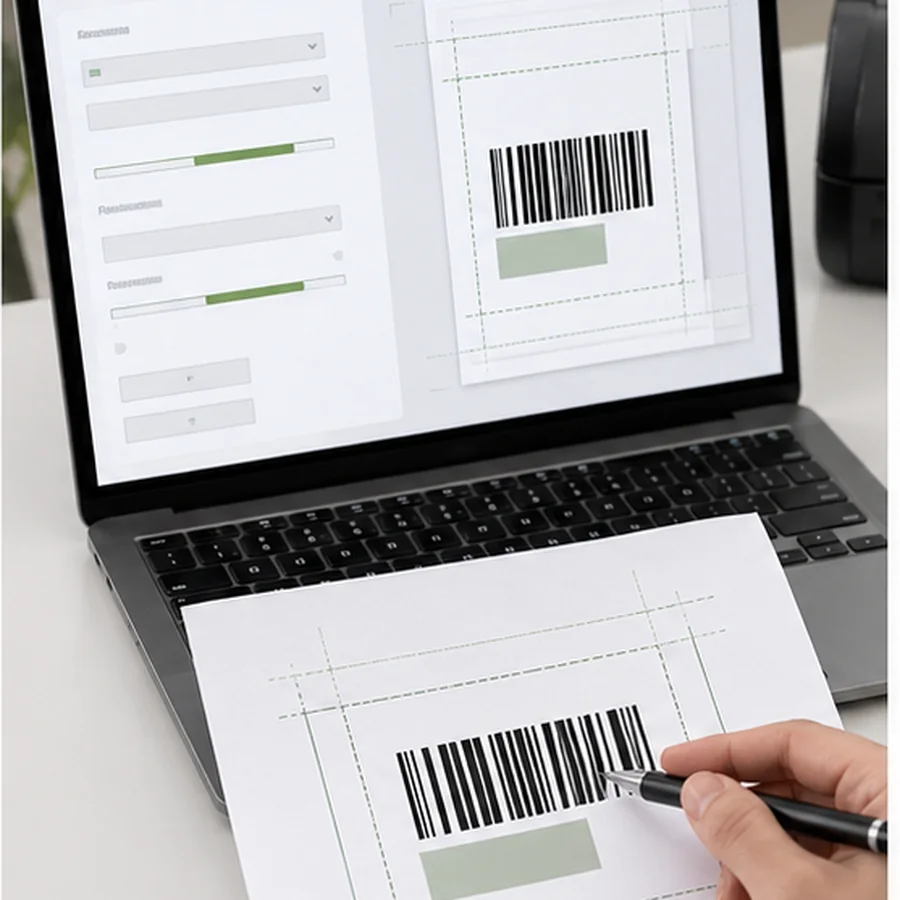
Separate the pattern before changing the file. A consistent shift usually means the page needs a small offset. A print that gets progressively worse from top to bottom usually means scaling, paper size, or feed. A print that changes from sheet to sheet usually points to tray loading, paper guides, thick stock, or the printer path.
When only one column or area is off, inspect whether the design itself is too close to the label edge. Barcodes need quiet zone and should not sit on the cut line. Review Barcode Quiet Zone and Label Size if the code appears to fit only when placed near a trim edge.
Check the barcode after alignment
A label can align visually and still fail to scan if the code was scaled, clipped, or printed too lightly. After the overlay test passes, print one real sheet, scan labels from different positions on the page, and compare the scan result to the source data. Pay attention to the first and last labels because small printer drift often shows there first.
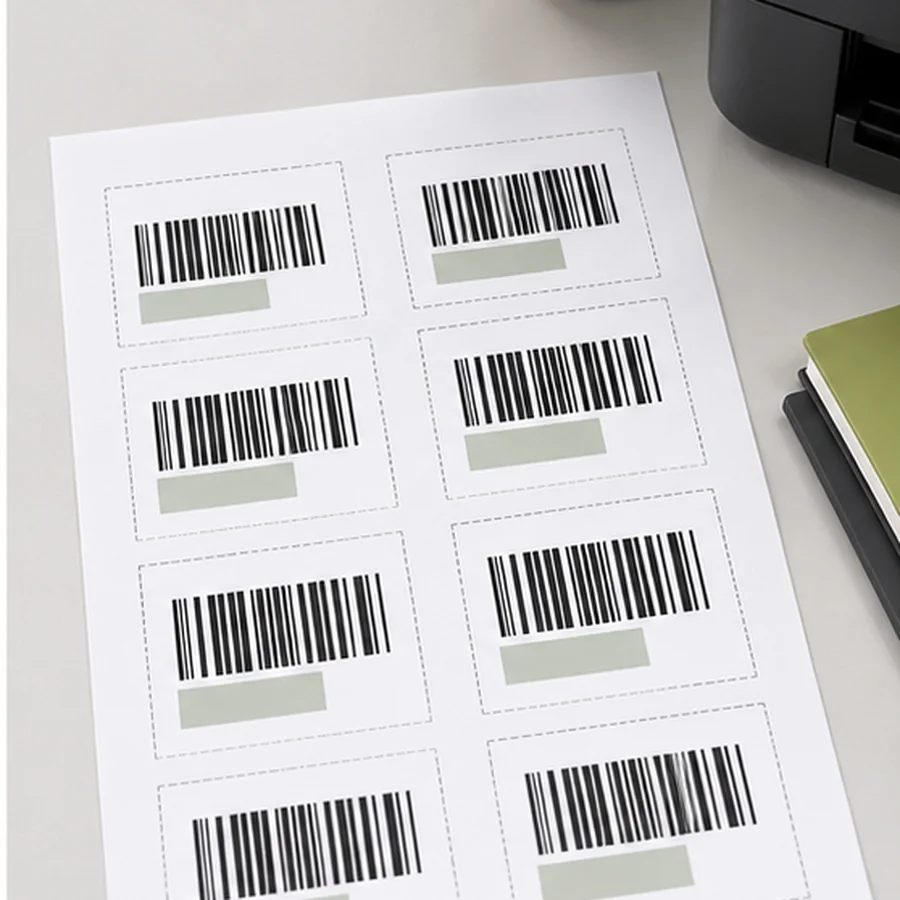
Save the exact working settings once the sheet scans correctly. Record the browser or PDF reader, scale setting, paper size, tray, media type, and printer used. That note prevents the next batch from starting the same alignment investigation again.
For spreadsheet-based batches, use How to Print Barcode Labels from Excel or CSV. If you are deciding whether sheets are still the right setup, compare them with Label Sheets vs Thermal Rolls.
Print one plain-paper overlay at 100 percent, verify template and paper size, then print one real sheet and scan labels from the top, middle, and bottom rows.