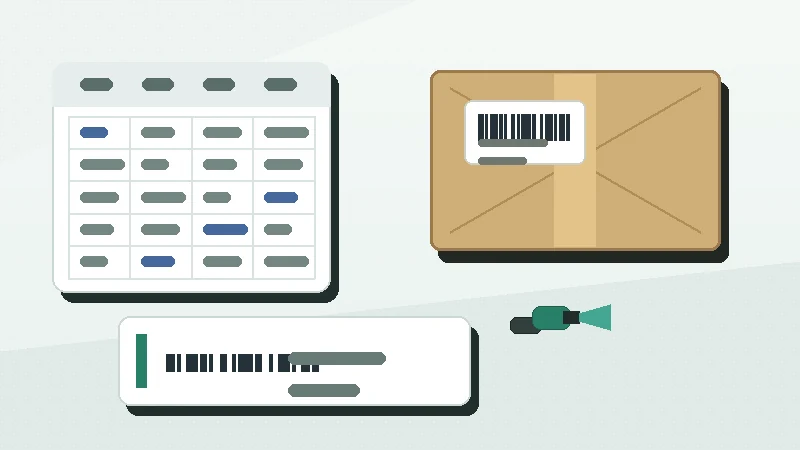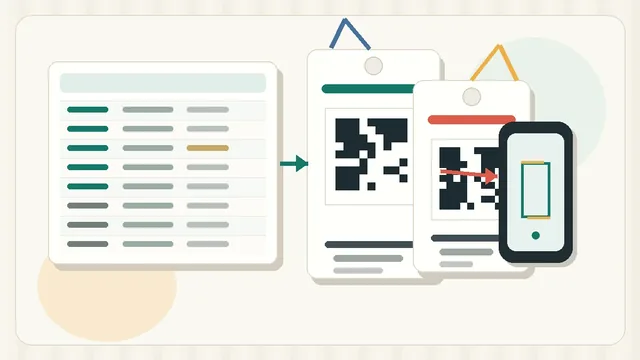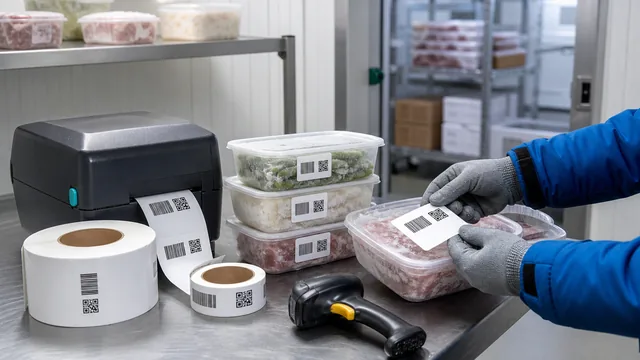
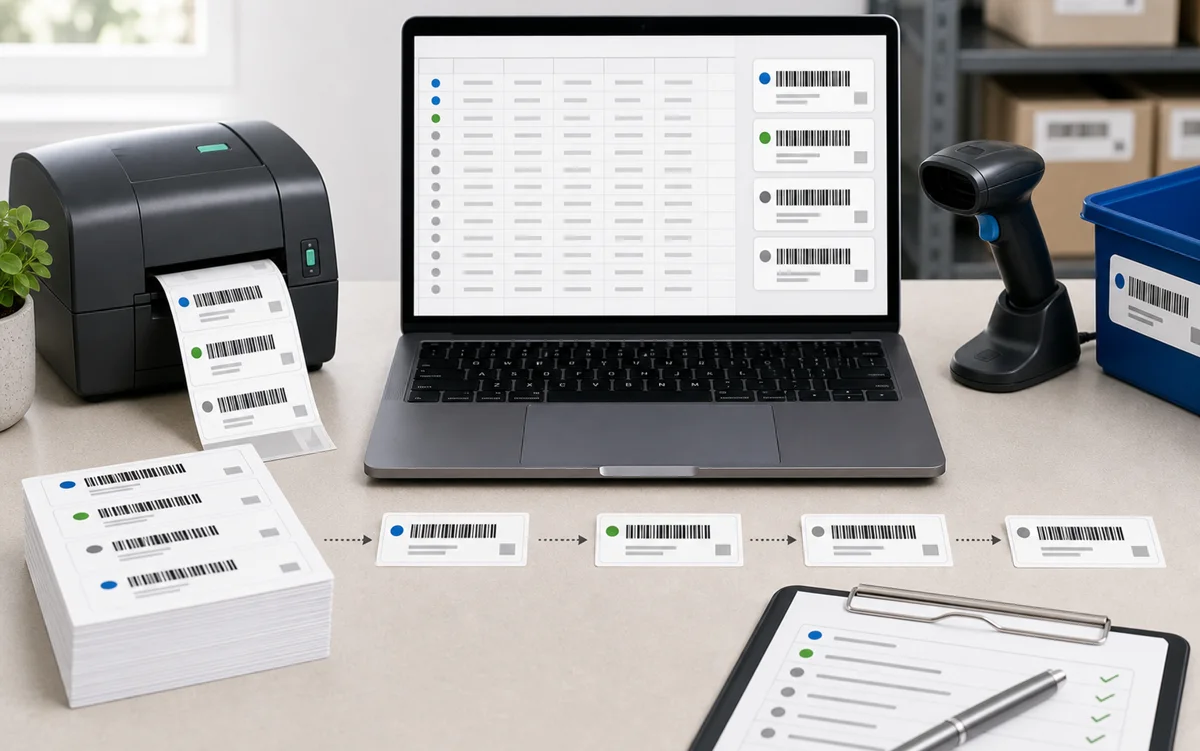
Serial number barcode labels fail quietly when the number plan is weak. Two items get the same ID, a spreadsheet removes leading zeroes, a reprint creates a second copy no one tracks, and the barcode still looks fine on the label.
The short answer: decide what one serial number represents, choose a fixed pattern, generate the values as text, check for duplicates, preview the awkward rows, then print and scan a small sample before applying labels to real items.
Decide what the serial number identifies
A serial number is different from a SKU. A SKU usually identifies a product type or variant. A serial number identifies one specific item. If 20 identical drills arrive at the shop, they may share one SKU, but each drill should have its own serial label if you need to track repairs, checkouts, audits, or replacements.
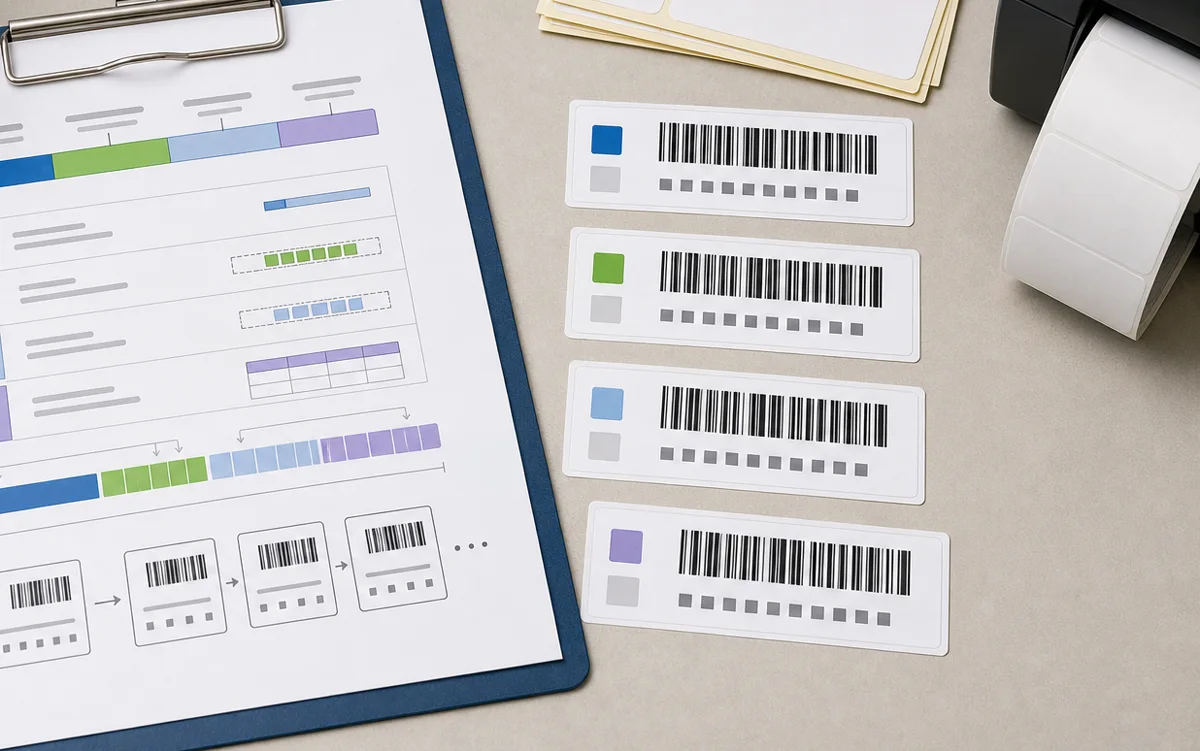
| Workflow | One serial number should identify | Example value |
|---|---|---|
| Asset tags | One laptop, tool, case, monitor, cart, or device. | AS-000482 |
| Service equipment | One maintainable item with its own service history. | EQ-001936 |
| Rental kits | One kit, not every replaceable part inside it. | KIT-01042 |
| Production units | One finished unit when individual tracking is needed. | UNIT-240118-006 |
| Badges or passes | One badge record, not a reusable name or role. | PASS-000731 |
Choose a fixed ID pattern
The best pattern is boring and hard to misread. Use a short prefix, a separator, and a fixed-width number when the team expects sequential values. Examples such as AS-000482, TOOL-00318, and KIT-01042 are easier to sort, compare, and read than mixed free-form values.
Plan for growth before printing. If you expect more than 9,999 labels, do not start with 4 digits. If several teams create labels, give each workflow its own prefix or reserved range so values do not collide later.
When an item is sold, retired, lost, or scrapped, keep its serial number in the history. Reusing old IDs saves a few digits but creates confusing scan results later.
Build the spreadsheet as text
Serial labels usually start in a spreadsheet, which means the identifier must be protected before import. Values such as 000482 and long numeric IDs are identifiers, not ordinary numbers. Microsoft warns that Excel can remove leading zeroes or display large numbers in scientific notation unless values are treated as text: Microsoft support on leading zeroes and large numbers.
| Column | Example value | Use |
|---|---|---|
| SerialNumber | AS-000482 | The exact value encoded in the barcode. |
| ReadableID | AS-000482 | Human-readable fallback text printed under or near the code. |
| ItemName | Cordless drill | Short context for the person applying or checking the label. |
| Location | Room-2B | Optional starting location, shelf, room, or bin. |
| Status | New | Optional workflow note for preparation, not always printed. |
Before import
- doneText formatStore serial values as text before CSV export or label import.
- doneOne row, one itemDo not use one row to represent several physical items that need unique IDs.
- doneNo blanksRemove blank serial cells before printing.
- doneNo duplicatesCheck the full column, not only the visible page.
- doneStable headersUse clear names such as SerialNumber, ReadableID, ItemName, and Location.
Control duplicates and reprints
A serial number batch needs a reprint rule. If one label jams, smears, or gets placed on the wrong item, the team should know whether to reprint the same serial number, mark it as spoiled, or generate a replacement. The wrong choice can create two items with one ID.
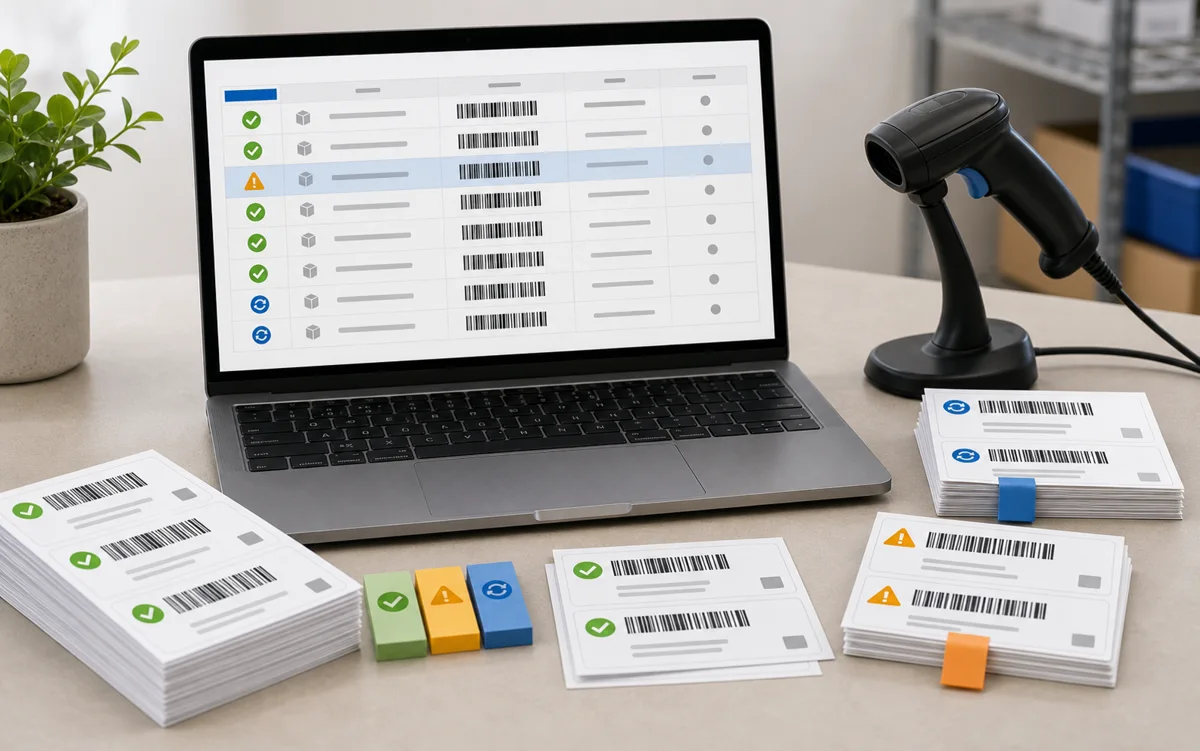
The label printed cleanly, scanned correctly, and was applied to the intended item.
The label printed badly or was damaged before use. Record it so it is not mistaken for an applied item.
The same serial number was printed again for the same item after a controlled mistake or replacement.
Pick a code type that matches the value
For internal serial number barcode labels, Code 128 is often a practical choice because it supports compact alphanumeric values such as AS-000482. Code 39 may fit older scanner workflows but usually takes more space. QR labels make sense when the scan should open a record URL or carry a longer value.
Do not choose the code type from appearance. Choose it from the scanner, software, encoded value, and label size. If you are unsure, compare the options in Code 128 vs QR Code Labels, then protect the quiet zone with the Barcode Quiet Zone and Label Size guide.
Design for scanning and fallback
The label should scan first and explain itself second. Put the barcode where it has enough room, print the serial number as readable fallback text, and keep optional fields short. If the item is small, curved, oily, handled often, or stored outdoors, choose the stock and placement before finalizing the layout.
A reusable layout helps after the first batch. Save the label size, code type, encoded column, printer, stock, and approval date. For that workflow, use Barcode Label Templates as the next planning step.
Print a sample and scan the real item
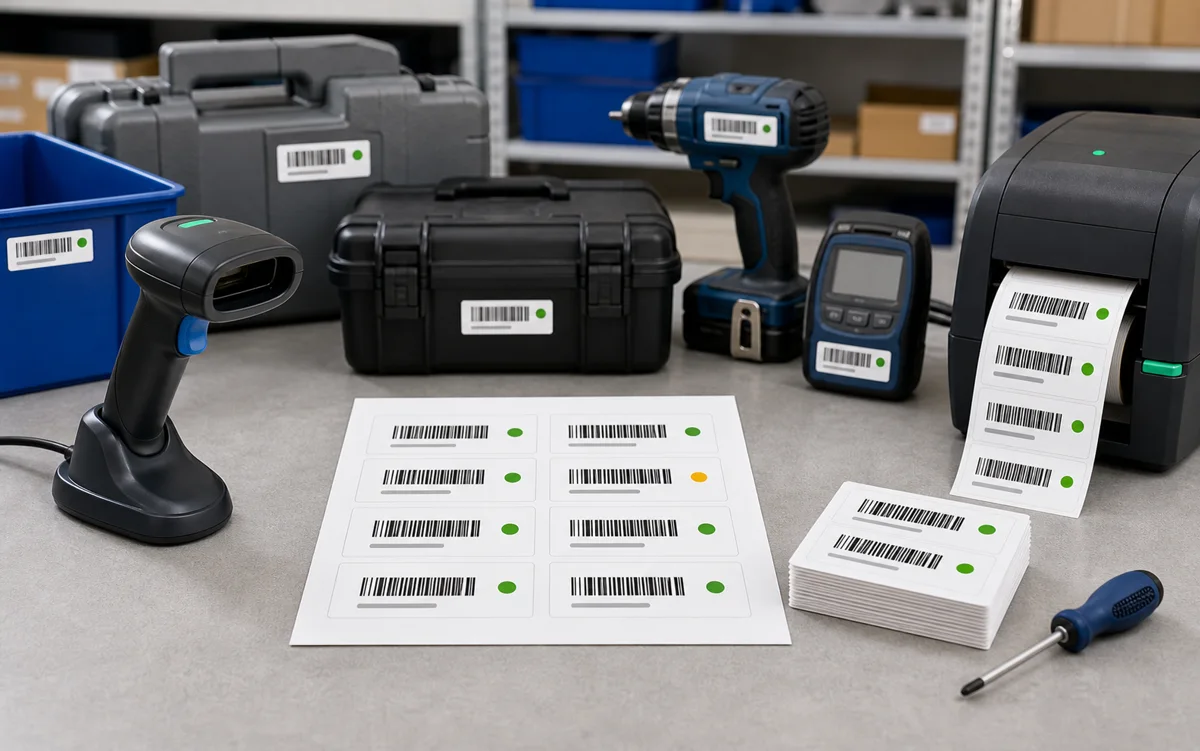
Print 5 to 10 labels on the actual stock. Scan the first, middle, and last labels in the batch. Then apply one sample to the real surface and scan again from the distance and angle the team will use. A flat desk scan is useful, but it does not prove the label works on a tool case, bin, laptop, bottle, or equipment panel.
Final batch check
- doneExact valueScan a few labels and compare the result to the SerialNumber column.
- doneReadable fallbackConfirm the printed text matches the encoded value.
- doneQuiet zoneKeep borders, icons, and item edges away from the code.
- donePlacementAvoid curves, seams, handles, dirty surfaces, and high-wear contact points.
- doneBatch recordSave the serial range, print date, template, printer, stock, and reprint notes.
For deeper spreadsheet cleanup, read Barcode Label Data Cleanup. For the broader design review, use the Barcode Label Design Checklist before printing the full run.
Create 10 real serial values, check them as text, print a small sample, and scan the labels before generating the full range.